Showing posts with label Office 365. Show all posts

Tuesday, March 5, 2019

How to access the Microsoft Stream Admin settings

While reading up on Live events (preview) in Microsoft Stream, I noticed a mention off the Stream Admin settings.

image

I was not able to locate this in the Microsoft Stream web interface, so went to the Microsoft 365 Admin center instead. But no reference to Stream here either…

image

Turns out that the Stream Admin settings are only accessible through Stream. In order to access the Admin settings the following is required:

  • Microsoft Stream license
  • Global Admin or Stream admin role

The Stream admin role can be assigned in the Stream Admin settings portal, unfortunately the is no Azure AD admin role that can be delegated nor can this role be assigned through Privileged Identity Management (PIM) currently.

If you’re following security best practices and use a separate admin account for administrative tasks, this probably means that a license for Microsoft Stream needs to be assigned to your admin account as well. A Stream license is required in order to access the Stream web interface.

Any user that meets the prerequisites can now access the Admin settings through the

image

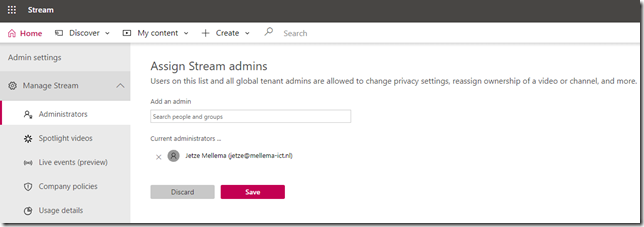
First thing that you want to do is delegate Stream admin permissions to either admin or regular user accounts. Any account this is listed here no longer has to be a Global Administrator.

image

Let’s hope that Microsoft will streamline (pun intended) the Streams admin experience and bring both access as permission requirements in line with the other Microsoft 365 workloads.

Saturday, June 30, 2018

Updated Connectors section in Exchange Online admin center

Update July 13th, 2008: It looks like Microsoft reverted this change for now.

“Constant change is here to stay.” Office 365 administrators may have noticed that Microsoft is revamping the Connectors area of the Exchange Admin Center. This section used to be a single list that displayed all connectors, which meant that it could be hard to identify the connector you were looking for.

The biggest visual enhancement is that this list now is split into two sections: Inbound and Outbound connectors. Inbound and outbound in this example is from the perspective of EOP. An inbound connector is created to accept email FROM a 3rd party system, an outbound connector defines how to route email TO another system.

image

But there’s more. New connector creation is no longer wizard-driven but uses a single form now to collect the required information. This actually makes a lot of sense. The process to create a connector is quite simple and especially with the distinction between outbound and inbound connectors, there’s not much business logic involved that would warrant a wizard to guide us through the process.

The new form is very clean and the wording for certain settings was updated to make it more clear what a feature does or what an admin can expect. See this example where the description of the setting now clearly mentions CBR and the help balloon is used for clarification.

image

And finally, Microsoft removed the validation of outbound connectors. Validation was a process where a test email had to be sent before saving the connector, a feature designed to prevent people from creating non-working connectors that could result in huge queues with undeliverable messages.

Validation was sometimes challenging, for instance when creating a connector that’s not ready to enable or when the admin does not have a valid recipient address available to validate against.

Even though I preferred a change notification on the Message Center, it’s certainly a good thing seeing Microsoft to invest in and improve the Exchange admin interfaces.

Wednesday, May 16, 2018

Microsoft Teams not working for K1/F1 users

I recently ran into an issue where some users could not access Microsoft Teams, even though a license was assigned. This only happened to users with a Microsoft Teams license from the ‘Deskless Worker’ suite, also known as the Kiosk, K1 or F1 SKU.

clip_image002

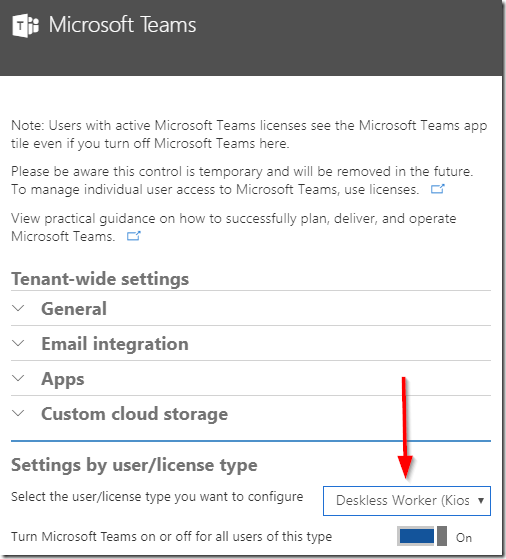
The reason for this is that the tenant-wide control to enable or disable Microsoft Teams by default does not include Deskless Workers. An admin has to enable Microsoft Teams for this SKU type explicitly.

The switch can be found in the Office 365 Admin Portal, navigate to Settings, Service & add-ins, Microsoft Teams. Use the drop-down list to select Deskless Worker (Kiosk) and enable the feature.

image

Do not forget to click the Save button to apply the updated settings.

Tuesday, March 27, 2018

Exchange Admin Center can’t handle duplicate display names

If you’re managing a larger organization, or even a smaller one, chances are that some of your coworkers share the same name. From an Exchange perspective this is not supposed to be an issue as the displayName attribute does is not required to be unique. End-users who try to locate the right person in their address book can look at the additional properties such as department or email address to find the correct ‘John Smith’ or ‘Pradeep Gupta’.

The Exchange Admin Center (EAC) in Exchange Online unfortunately does not handle this very well. There’s many places where an admin picks a user from the list, for instance to create a condition or exception in a mail flow rule, but where EAC uses the display name to identify the Exchange object. Which is not a problem, until there happens to be more than one object with that display name.

image

There are multiple recipients matching the identity "Display Name". Please specify a unique value.

In case you’re wondering, the ‘click here for help…’ link goes to a generic error landing page.

Microsoft is aware

I worked with Microsoft Premier Support on this issue and after a lot of communication (“why don’t you use a group instead of a user, put that user in a group”) we were just about to file a DCR, until we were informed that the product group is already aware of this design flaw. According to Premier Support a fix is scheduled but without an ETA.

I can only assume that this will require significate code changes so expect that this will be part of a next major redesign of the EAC. After all we have seen very little updates in this area since the last 5 years.

If you run into this issue, please work with Microsoft Support to gain more visibility on this issue. The PG needs to be aware of that this is a proper bug and every time and admin runs into this issue, it costs a lot of time and effort to work around it.

Work around

That said, there is of course a way to work around the issue. The bug is caused by the way that EAC handles the objects, but this does not apply when using PowerShell directly.

In case of creating or editing a mail flow rule the work around is to select a placeholder object with a unique display name and then edit the properties in Exchange PowerShell with Set-TransportRule.

Repro steps

If you’re interested in this bug, follow these steps to reproduce it on your own tenant:

  • Create two mailboxes and a transport rule

New-Mailbox -Shared -Name displayname1 -DisplayName Shared
New-Mailbox -Shared -Name displayname2 -DisplayName Shared
New-TransportRule "test rule to reproduce issue" -SubjectContainsWords "thisneverhappens" -RejectMessageReasonText "rejected because of the following Mail Flow Rule: test rule to reproduce issue"

  • Add both mailboxes as an exception to the rule

Open de Mail Flow Rule in EAC and add an exception "The sender is this person". In the people picker, select the one of the two test mailboxes and click Add, Ok. Now click Save to reproduce the error.

What about Exchange Server?

My troubleshooting was focused on Exchange Online, but I assume it’s in Exchange Server as well. Please let me know if you can confirm.

Tuesday, February 27, 2018

Office 365 Phone System numbers, how to convert from User to Service?

When porting numbers to Office 365 Phone System, the admin has to specify if the number should be a service number or a user number. The same applies when new numbers are requested. What’s the difference between the two number types, you may ask. The answer is easy.

A user number is assigned to a single user.

A service number is connected to a call queue, a conference bridge or an auto attendant and is capable of handling simultaneous calls.

A common issue for new Office 365 Phone System customers is where they port an entire number block as user numbers, including the organization’s main number. Soon they discover that the main number should’ve been used with a Call Queue or an Auto Attendant but those features require a the number to be configured as a service number instead.image

If you’re searching for information on how to convert the number type you’ll find many outdated articles stating that this is not possible, requires opening a support incident or recommend to port the number away from Microsoft and then port it back.

The situation has now, end of February 2018, much improved. All you have to do is send an email to Microsoft’s Skype for Business Number Porting Team. They need the following information to be able to process the request:

  • The number that needs to be converted
  • The requested number type: user or service
  • When do you want the conversion to take place?

My experience with a number that’s currently not assigned, so no downtime to communicate with the end users, is that it was converted within 30 minutes after confirming the details through email.

To start the process, simply send an email with the required information to ptn@microsoft.com for North America or ptneu@microsoft.com for Europe.

Please let me know in the comments if you’re experience was as smooth as mine.

Friday, February 16, 2018

HCW does not ‘remember’ mail transport configuration

Centralized mail transport (CMT) is a hybrid mail flow scenario where all outbound email from Exchange Online is routed through on-premises servers first before sending it to the internet. It’s not really common but there are organizations with specific requirements that can be met with centralized mail transport.

As you probably know, when the HCW is run for the first time, the entered configuration is stored on the local hybrid configuration AD object. When an admin starts the HCW again, the HCW will read the configuration form the AD object and use it to pre-populate the wizard with the information that was entered previously.

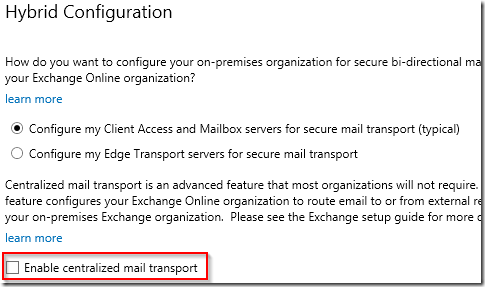
Last week I was working with a customer with an Exchange 2013 CU19 environment where we built a hybrid configuration. When everyting was setup and tested I re-ran the HCW to add more email domains. In this specific instance I noticed that the checkbox for centralized mail transport was not present:

image

Continuing with the wizard would effectively break mail flow for this customer because the HCW would disable the centralized mail flow feature and route outbound messaged from Exchange Online to the internet directly.

First I verified the actual configuration in EOP and found that is was set up correctly:

image

Next I verified the information stored in the local hybrid configuration AD object and found that CentralizedTransport was listed under Features:

image

After opening a support incident with Microsoft Support the engineer confirmed that this behavior was ‘by design’. I won’t bother you with the argumentation because it made no sense at all. Unfortunately this customer did not have a Premier Support and there were very limited options to escalate the issue.

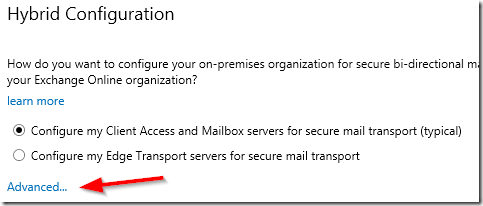
This is bad and I can think of at least three reasons why. First of all this feature by default is not displayed on the HCW page. The admin has to click on Advanced… for the CMT configuration to appear on the HCW page:

image

This means that it’s almost impossible to spot the problem. Second problem is that this behavior is simply inconsistent, it doesn’t make sense that the HCW caches all information EXCEPT thing single setting.

But third and biggest problem that I have with this issue is the impact. When discussing this with Microsoft the engineer told me that the impact is minimal because outbound email will still be delivered to the receiving mail server. This demonstrates a huge lack of understanding of why organizations choose to use CMT. Having to explain to your legal department why sent emails are missing from the archive is not a fun job.

And that’s one other problem that I have with this experience. The engineer did not investigate the HCW log files, did not agree with the fact that this is an impacting issue and an inconsistency and did not offer any escalation path. This reminded me of how difficult it can be to work with Microsoft Support if you do not have access to higher support tiers or a TAM.

I realize this is a rare scenario, but if you’re using CMT and run into the same issue, please open a service request and escalate if possible. This should be fixed.

Tuesday, April 11, 2017

Some feedback on the new Exchange PowerShell cmdlets

As someone who has been working pretty much dedicated with Exchange since ~2000 I have witnessed quite a few changes. The single most important one is the move to PowerShell as the primary management interface. The Exchange team was the first within Microsoft to switch for the full 100% to PowerShell and at least two version of Exchange have seen their release slightly delayed because they had to wait for the PowerShell version GA first.

While all other products continued to implement PowerShell as well and used the same set of professional standards there were significant differences to notice between the various implementations. I always preferred the way how the Exchange team implemented PowerShell. Identity is always positional parameter 1, Get cmdlets without a parameter return the first 1k of results or whatever is the default value of ResultSize for that cmdlet and destructive cmdlets (Set, Remove, New) always support the -WhatIf switch. I’m sure that every Exchange admin once tried to run Get-ADuser and discover that the cmdlet doesn’t return any values unless you specify a value for -Filter.

Personally I always preferred the consistent and user friendly implementation in Exchange. Maybe that’s why it bothers me that Microsoft no longer applies the same standard to new cmdlets that are being added in Exchange and Exchange Online.

An example is Get-FoucesedInbox and Set-FoucesedInbox:

image

The first example shows that the -Identity parameter no longer is a the first positional parameter, a positional parameter can be omitted and PowerShell assumes the first value after the cmdlet to be meant for the first positional parameter. This can be a bit annoying because Exchange admins are no longer used to specify the -Identity parameter because they never had to.

What’s more serious is that Set-FoucesedInbox no longer accepts the -WhatIf switch. -WhatIf tells the cmdlet to perform all prerequisite checks but not to make the actual changes. This parameter is essential for admins to check their syntax before running the actual cmdlet.

Some other examples of cmdlets that did not receive the -WhatIf switch are:

Cmdlet

Exchange

Exchange Online

Set-Clutter X X
Set-CompliancePolicySyncTenantInfo X X
Remove-BlockedSenderAddress   X
Remove-CompliancePolicySyncNotification X X
Set-OMEConfiguration   X
New-ReportSchedule   X
Set-ReportSchedule   X

As you may notice they were all added in the last few years.

While I understand that the industry has changed and Microsoft’s priorities are different in the ‘cloud first’ era, I do urge the Exchange Team to keep focus on what made them successful in the first place: excellent quality and always strive to deliver the best. Please do not forget to think of the people that are actually working with the product.

Thursday, March 16, 2017

New Exchange Online PowerShell module with MFA support no longer in Preview

In a previous article I wrote about the new PowerShell module with support for Modern Authentication and Multi-factor Authentication. The Preview status was a reason for many organizations to hesitate to take the new module into production.

Yesterday Microsoft released an updated version of the Hybrid Configuration Wizard with MFA support, the HCW now requires installation of the new PS module to support MFA. Microsoft’s ‘hybrid’ PM Timothy Heeney confirmed in the comments section that this also marks the official RTM of the new PowerShell module, the module is no longer in Preview. Good news!

Tuesday, March 7, 2017

Surface Hub devices and the Skype for Business Trust Model

I’m sure that most Lync or Skype for Business admins, users as well, are familiar with the Trust Model. The Trust Model is responsible for the ‘Skype for Business cannot verify that the server is trusted for your sign-in address’ warning. This warning is thrown when the clients tries to create a secure TLS connection with a server and the domain suffix of the server is different from the user’s SIP address, the server can be either a Skype for Business or Exchange server. This warning is very common in organizations that use more than one SIP domain and is often suppressed on managed computers with the TrustModelData registry value.

With a Surface Hub device the issue is a bit more complicated to determine, but very easy to work around. In this article I will explain how.

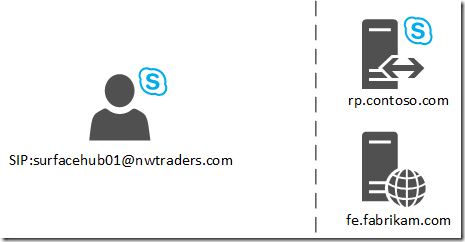
Let’s consider the following scenario. Contoso is an enterprise organization that uses many different SMTP and SIP domains across their divisions. The AD domain name is contoso.com and this is also the DNS domain suffix for most servers. Skype for Business is hosted with a 3rd party named Fabrikam, their servers have a fqdn with the fabrikam.com suffix.
image

The Northwind Traders division of Contoso has purchased a Microsoft Surface Hub device and created a device account with a SMTP, UPN and SIP address with a nwtraders.com suffix.

The issue

An admin was able to configure the Surface Hub with this computer account, however users are not able to start a meeting.

It’s important to understand that although the device boots successfully, the built-in Skype for Business client is not immediately connecting to Skype for Business (Online) but starting a meeting does trigger this process.

The investigation

Surface Hub devices run on Windows 10 Team edition which does not offer a regular interface that allows to access the file system to collect log files. Instead we need to boot the device, let it run for 5 minutes, then reproduce the issue and tell the Surface Hub to collect the log files.

To do this, connect a USB disk to the device and open the Settings app. Then navigate to Update and Security, Recovery, Collect logs. The log files are now written to the USB disk.

When analyzing the log files, be aware that the Surface Hub’s Skype for Business client is very similar to the Lync 2010 Windows Store app and behaves as a mobile client.

2757 TL_WARN() [2]10B0.1394::02/28/2017-12:38:54.103.00000a8c (NONE,NModel::CTrustModelManager::LookupTrustModel:CTrustModelManager_cpp124)<O_TRC><ADR>0x00000243A9F16EB0</ADR>Trust model for server rp.contoso.com not found. hr=0x80ee0058</O_TRC>
2758 TL_WARN() [2]10B0.1394::02/28/2017-12:38:54.103.00000a8d (NONE,NModel::CTrustModelManager::QueryTrustModel:CTrustModelManager_cpp171)<O_TRC><ADR>0x00000243A9F16EB0</ADR>Server: rp.contoso.com cert=0000000000000000, blockAndWait=0</O_TRC>
2759 TL_INFO() [2]10B0.1394::02/28/2017-12:38:54.103.00000a8e (NONE,NModel::CTrustModelManager::QueryTrustModel:CTrustModelManager_cpp230)<O_TRC><ADR>0x00000243A9F16EB0</ADR>Not able to get SAN from cert. Continue query TrustModel.</O_TRC>

Here we clearly see the issue. The DNS domain suffix of the reverse proxy server is contoso.com and the user’s SIP address suffix is nwtraders.com. This triggers the Trust Model warning and because the Surface Hub interface does not present the familiar warning, it simply prevents the device from connecting with Skype for Business.

The solution

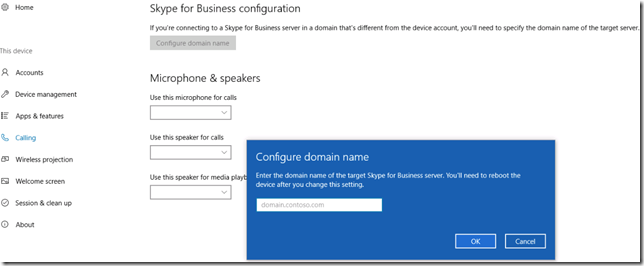
As I mentioned earlier, this is a very common issue for most organizations. The Surface Hub device offers an interface to add domains to the Trusted Domain list. Open the Settings app and navigate to This device, Calling. Here click the Configure domain name and enter a comma separated list of the additional domain names that exist on your Skype for Business and Exchange servers.
image

In this scenario we would need to enter the DNS suffix of the reverse proxy, but that’s not sufficient. While this will allow us to connect to the reverse proxy this will throw another warning in the logs because the DNS suffix of the front-end server is different from the user’s SIP address suffix too. In this example we would need to enter the following:

contoso.com, fabrikam.com

A reboot of the device is required to activate the new settings. If you’re still not able to connect, export and analyze the logs again. There may be additional issues that prevent the device from connecting to Skype for Business.

Summary

Instead of showing a warning popup the Surface Hub simply does not allow to connect when the domain name of a servers is different from the SIP domain. If you know that this scenario applies in your organizations, add the additional domains in the Settings app.

For more information please see:

Monday, March 6, 2017

Skype for Business PSTN Calling in Preview for The Netherlands and Ireland

PSTN calling is an add-on telephone service that, when combined with Skype for Business Cloud PBX, can become your phone system. This is currently available for users in the United Kingdom, United States, Puerto Rico, France and Spain.

Microsoft now introduced this feature in Preview for The Netherlands and Ireland. To nominate your organization, make sure you’re prepared to deploy PSTN Calling to at least 50 users and are available to give feedback on the experience.

image

Based on what we’ve seen with France and Spain I expect general availability in two or three months. More information on https://www.skypepreview.com/

Tuesday, February 7, 2017

New 100 GB mailbox limit currently being rolled-out to your tenant

In early December (2016) Microsoft announced that the default mailbox limits in Exchange Online would be raised to 100 GB, a massive increase from the 5 GB that we considered to be huge in the BPOS era. Who needs such a large mailbox? Well, we do now apparently.

image

While discussing this with my peers last week we noticed that most of us did not saw the change reflected in their tenants. Today I checked it again and saw that the new limits were applied to my mailboxes.

image

Note that the limits only change for mailboxes where the default limits were not updated. If you have set one of the three values to a non-default value, no changes were made automatically. Admins are able to change the values manually up to 100 GB.

Another thing to be aware of is that the new limits only apply to Exchange Online licenses that are purchased as part of an E3 or E5 subscription. If you’re purchasing Exchange Online as a separate SKU the old limit of 50 GB remains unchanged, the same applies for shared and resource mailboxes. For more information, see the Mailbox storage limits section in the Exchange Online Limits document on TechNet.

Monday, February 6, 2017

Fix for the Skype for Business hangs

The latest update for Office 2016 in Current Channel contains a fix for Skype for Business issue where the interface stops responding when the user has multiple IM windows open.

image

The build number is 7668.2074, my Office 365 ProPlus was still on a slightly older build so I had to start the update process manually.

image

For more information about the latest updates for Current, Deferred and First Release for Deferred, see Office 365 client update channel releases.

Monday, January 16, 2017

Microsoft about to release new Skype for Business IP Phone firmware for Polycom VVX devices

LCS/OCS/Lync/Skype has a long history when it comes to management of IP phone firmware updates. OCS 2007 R2 introduced the Device Update Service and greatly simplified the process and the required infrastructure. In the Lync 2010 timeframe the 3rd party IP phone (3PIP) certification added support for non-Microsoft firmware such as Polycom UC Software.

image

In Lync Server 2010 for instance, an admin uses the Import-CsDeviceUpdate cmdlet to import a .cab file and approves the update in the LSCP. The client device will periodically query the Device Update Web service and download and install the new firmware.

The same principle applies to Skype for Business Online with Cloud PBX today. Technically speaking the title of this article is incorrect, Microsoft is not releasing the software but merely distributing the Polycom firmware through it’s infrastructure.

Enabling or disabling this feature is a tenant-wide setting and can be done by modifying the CsIPPhonePolicy. By default EnableDeviceUpdate is True.

image

For more information about this feature, read Jeff Schertz’s post about this topic: Device Updates with Skype for Business Online.

The major difference with Skype for Business on-premises is that customers cannot upload a firmware version. Microsoft has an internal process to certify 3rd party firmware updates. At the moment of writing the only version that has been approved is Polycom UCS for the VVX line of devices, version 5.4.1.17653. Specifically the following devices are supported:

  • VVX 201
  • VVX 3xx
  • VVX 44xx
  • VVX 5xx
  • VVX 6xx

The issue is that the most recent version of Polycom UCS is currently 5.5.1. That doesn’t sound much newer than 5.4.1 but in reality Polycom has released many interim versions and each version added important new features and fixes. That’s why it’s good to know that Microsoft is currently qualifying UCS version 5.5.1.11344.

If you consider using Skype for Business Online device updates, be aware that the capabilities currently are extremely limited. The device update feature cannot be enabled for a specific set of users or devices and the other management features are limited as well:

image

(note: EnableBetterTogetherOverEthernet by default is False)

Most of the configuration items are pretty self-explanatory but if you want to know more, the help page of  Set-CsIPPhonePolicy is very informative.

Microsoft did not communicate a release date for 5.5.1.11344 but my sources say that it shouldn’t take long. For more information, read: New features in the firmware update for Polycom VVX IP phones.

Note

I’m working with Polycom and Microsoft to investigate an issue where Polycom VVX devices receive a ‘400 bad request’ when they query the Skype for Business Online Update Service. If you’re encountering the same, let me know in the comments.

Wednesday, January 11, 2017

New Exchange PowerShell module with Modern Authentication support now available in Office 365 Portal

Many organizations are enabling multi-factor authentication (MFA) for all their accounts, or a subset such as for instance user accounts with an admin role. Especially with how easy this is with Office 365, even with the basic MFA feature that’s included with the license. Unfortunately enabling MFA on an admin account breaks the ability to use PowerShell to administer Exchange Online, Skype for Business Online or SharePoint.

A few months ago a new version of the Exchange PowerShell module was ‘leaked’ to the internet. It was a click-to-run executable without any documentation, but it introduced support for Modern Authentication which is a requirement for MFA.

And while there’s still no public announcement on the various Microsoft Exchange or Office blogs, not even a mention in the Office 365 Roadmap, there have been some recent updates. For starters the new PowerShell console is now available for download in the Hybrid section of the Exchange Admin Center.

image

The second is that some documentation has been published. The process was pretty self-explanatory but some official guidance is always better. The short version is this: install the application, then use Connect-EXOPSSession to create a remote session.

image

Read more in this article on the TechNet Exchange Technical Library.

Friday, November 4, 2016

Microsoft Teams, here’s the admin guidance

Yesterday Microsoft released a preview version of Microsoft Teams, the new product to compete with Slack. It will be very interesting to see Teams integrate in Office 365 as yet another collaboration product next to Skype for Business, Exchange, Yammer, SharePoint Newsfeed and Office 365 Groups.

Currently Microsoft Teams is not enabled by default, a tenant admin has to enable the application in the Office 365 Admin Center.

image

This will change in 2017 Q1 when Teams will be enabled by default. Or as Microsoft states in the Message Center (id MC84541):

We are rolling this preview out off-by-default, to give you a chance to explore the new capabilities. This experience will be turned on-by-default in the first quarter of 2017. At this time, you can control access to this experience, at the organization level. We are working on user-level controls for this feature, and will communicate again when available.

I know that many of my customers are still struggling how to handle Office 365 Groups creation and the lack of governance and control around this area. Microsoft is working hard to improve this, as they explained in this session at Ignite 2016: Manage Microsoft Office 365 Groups But with every new Microsoft Team there will be a corresponding Office 365 Group created.

This raises the question how admins can manage the Microsoft Teams roll-out in their organization. What are the firewall requirements? And how to estimate bandwidth for peer-to-peer calling?

The good news is, there is actual admin documentation. The bad news is that it’s no longer consolidated on a single place as we’re used to with TechNet. The currently available resources for admins can be found here:

Much to my surprise the most relevant information for admins was hidden in part 2 of the MVA video series. I highly recommend to download the Deploy_Microsoft_Teams.pdf document that can be found in the Resources section of this training.

image

There’s a ton of extremely valuable information in this document that helps you understand how to prepare for Microsoft Teams, at least from an infrastructure point-of-view.

image

image

image

Have fun!

Office 365 MFA is awesome! Unless you’re an administrator…

For some reason I have never worked with MFA with Office 365 until last year. And I must say, it is awesome! Even the free version of Azure MFA that’s included with the Office 365 subscription meets the requirements of most organizations. It’s very easy to setup and configure and the end-user experience is pretty good too, supporting text messages, phone call or the Azure Authenticator app.

image

Microsoft did a great job integrating the PhoneFactor acquisition (2012) in Azure AD and Office 365. So it’s not a surprise that a lot of organizations plan to enable MFA for all users, some users or the users with an admin role. And that’s where the issue is, Office 365 MFA currently does not support Remote PowerShell. Or I should say Remote PowerShell does not offer support for MFA because this would require support for Modern Authentication. This applies not only to Exchange management, but too PowerShell management of SharePoint, Skype for Business, EOP and Security & Compliance as well.

image

How about app passwords then? We can use app passwords for applications that do not support MFA right? Unfortunately app passwords are not working either.

When talking with Microsoft Premier Support they explained there’s currently no news to share. However, a Microsoft Most Valuable Professional explored the limits of his NDA on Facebook when he disclosed that Microsoft has made a preview version of Exchange PowerShell to beta testers at the moment. I’m very keen to learn more about this new version, because currently Remote PowerShell depends on the version of PowerShell that’s installed in the OS of the workstation. I’m assuming that MFA support requires the installation of additional software.

Ironically the new Office 365 Secure Score site (https://securescore.office.com/), a challenge were organizations receive points for increasing the security, awards 50 points for organizations that enable MFA for all their Tenant Admins. There’s no mention that this removes the ability to manage Office 365 with PowerShell.

image

Keep an eye on the Office 365 Roadmap and the Azure MFA Documentation for updates.

Microsoft reverses the undocumented changed Exchange Online license removal behavior

A couple of weeks ago some users reported a change in behavior when an Exchange Online license was removed from an Azure AD user object. It was reported that with the changed behavior mail would still flow to a mailbox, after the license was removed. When a customer opened a service request with Microsoft Support, they acknowledged the change but there was no documentation available, nor was this change announced on the Office 365 Roadmap.

The first public information appeared early October when Microsoft added the following text in the License Removal section of the Delete or restore user mailboxes in Exchange Online document.

Previously, in Exchange Online, if you removed an EXO license the user was kept, but the mailbox user was transformed into a mail user and the mailbox was moved to the recycle bin. You could then recover the mailbox within the 30 days time limit.

This has now changed in Exchange Online. If you remove a user's license, the user mailbox will no longer be able to sign in and use Exchange Online or Office 365. The user mailbox will remain in Exchange Online until it is deleted, permanently removed or purged by the Office 365 admin. You can reassign a license to the user and make the mailbox active again.

But if you look in this document today the text was removed and replaced with a link to this post on the Official Exchange Team Blog: Change in behavior for delicensed Exchange Online users

image

In this post Microsoft explains the change in more detail, apologizes for the way they handled the change and most important, that they rolled back the change for now:

Due to extensive feedback from customers we are rolling back this feature to the original behavior in order to improve the feature before we release it again in an easier format (and with better documentation).

For more information, read the full post here: Change in behavior for delicensed Exchange Online users

Wednesday, October 5, 2016

Focused Inbox for Outlook is delayed

When Microsoft announced Focused Inbox for Outlook and Outlook on the Web (OWA) in July they planned to release the new features to First Release customers starting early September 2016. Roll-out to the 4th ring of customers was scheduled for October.

image

One month between First Release and GA may seem much, but for organizations that need some more time to understand the impact and communicate the changes with the end-users, a month isn’t that much time.

But more importantly, September has already passed and we have not seen the new feature to appear nor any new updates on the Office Blog or documentation for administrators.

Last week I attended Microsoft Ignite in Atlanta and had the pleasure to speak with some members of the Outlook time. My understanding is that the feature is ready, the documentation has been written but the actual deployment has been rescheduled to the November/December timeframe.

Microsoft has promised to do a better job than they did with the roll-out of Clutter. Documentation for admins should be published before launch to First Release tenants. If you want to be prepared, read up on Focused Inbox admin controls in my previous article.

Thursday, September 22, 2016

Exchange Online and the new email address limit

Update: The actual limit was updated to 400, as documented in “Too many proxy addresses" error when you try to add or remove email addresses from an Exchange Online recipient.

Exchange Online, just as any other cloud service, is a shared environment where resources are pooled between multiple tenants. This means that certain limits need to be enforced, either to ensure that the services is being used as intended or to prevent that some users consume an uneven share of the available resources.

Luckily most limits, not all, are documented quite well in the Exchange Online Limits section of the Office 365 Service Descriptions. One of the tables on that page contains some limits with regards to recipients. See the following screenshot of this table as it was on the 10th of July, 2016: (click to enlarge)

image

And here is what recently changed:

Capture

A new Recipient proxy address limit was added to the table and immediately enforced.

Interesting is that the column for Exchange 2013 is populated with the value of 200 now too:

image

Unless a recent CU introduced a hardcoded limit I don’t think this is accurate. By my knowledge the real limit in the on-premises world is the character limit of the proxyAddresses AD attribute.

Now this may not apply to you, but there are an awful lot of people out there who have up to 300 or more proxy addresses. Some users created custom addresses for each mailing list of vendor account as Exchange never implemented a wildcard email address feature (jetzemellema+amazon@gmail.com).

And to make matters worse, the admin interfaces do not allow to remove individual email addresses and then save the object again. A possible work around is to export all proxy addresses to CSV, remove them all, clean up the CSV to contain <200 entries and add them again with PowerShell.

The easiest long-term solution appears to be to add additional Distribution Groups where your mailbox is the only member. Now add a bunch of those addresses to the DG to ensure you can still receive all messages sent to the addresses.

In hindsight this would’ve been a perfect topic for Microsoft to announce before implementing the change, including guidance for customers who are impacted by this change.

Friday, August 26, 2016

Update, fixed: KB3176934 breaks remote PowerShell

Update: This issue has been fixed in the re-released KB3176938 update.

Today I ran into an error message on one of my systems. PowerShell was unable to import my remote session to Exchange Online.

image

Import-PSSession : Could not load type 'System.Management.Automation.SecuritySupport' from assembly 'System.Management.Automation, Version=3.0.0.0, Culture=neutral, PublicKeyToken=31bf3856ad364e35'.

A quick Google search learned that this KB3176934 update was released a couple of days ago and is known to break DSC, remote PS and probably other stuff.

Microsoft scheduled an updated update to be released on the 30th of August 2016. If you can’t wait for some reason, for instance you planned to do some actual work today, uninstall the update and reboot your system.

wusa /uninstall /kb:3176934

Source: PowerShell DSC and implicit remoting broken in KB3176934