Showing posts with label Exchange 2016. Show all posts

Friday, February 16, 2018

HCW does not ‘remember’ mail transport configuration

Centralized mail transport (CMT) is a hybrid mail flow scenario where all outbound email from Exchange Online is routed through on-premises servers first before sending it to the internet. It’s not really common but there are organizations with specific requirements that can be met with centralized mail transport.

As you probably know, when the HCW is run for the first time, the entered configuration is stored on the local hybrid configuration AD object. When an admin starts the HCW again, the HCW will read the configuration form the AD object and use it to pre-populate the wizard with the information that was entered previously.

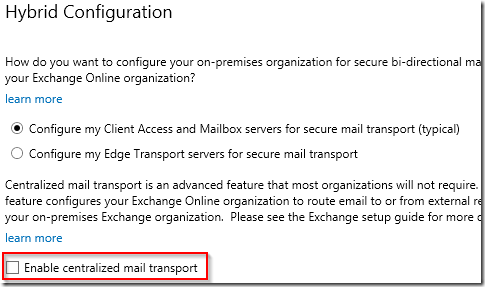
Last week I was working with a customer with an Exchange 2013 CU19 environment where we built a hybrid configuration. When everyting was setup and tested I re-ran the HCW to add more email domains. In this specific instance I noticed that the checkbox for centralized mail transport was not present:
image

Continuing with the wizard would effectively break mail flow for this customer because the HCW would disable the centralized mail flow feature and route outbound messaged from Exchange Online to the internet directly.

First I verified the actual configuration in EOP and found that is was set up correctly:

image

Next I verified the information stored in the local hybrid configuration AD object and found that CentralizedTransport was listed under Features:

image

After opening a support incident with Microsoft Support the engineer confirmed that this behavior was ‘by design’. I won’t bother you with the argumentation because it made no sense at all. Unfortunately this customer did not have a Premier Support and there were very limited options to escalate the issue.

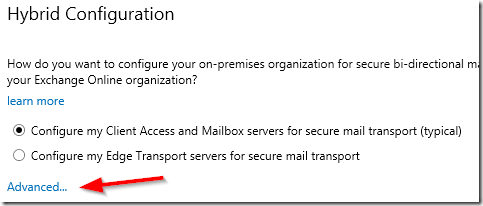
This is bad and I can think of at least three reasons why. First of all this feature by default is not displayed on the HCW page. The admin has to click on Advanced… for the CMT configuration to appear on the HCW page:
image

This means that it’s almost impossible to spot the problem. Second problem is that this behavior is simply inconsistent, it doesn’t make sense that the HCW caches all information EXCEPT thing single setting.

But third and biggest problem that I have with this issue is the impact. When discussing this with Microsoft the engineer told me that the impact is minimal because outbound email will still be delivered to the receiving mail server. This demonstrates a huge lack of understanding of why organizations choose to use CMT. Having to explain to your legal department why sent emails are missing from the archive is not a fun job.

And that’s one other problem that I have with this experience. The engineer did not investigate the HCW log files, did not agree with the fact that this is an impacting issue and an inconsistency and did not offer any escalation path. This reminded me of how difficult it can be to work with Microsoft Support if you do not have access to higher support tiers or a TAM.

I realize this is a rare scenario, but if you’re using CMT and run into the same issue, please open a service request and escalate if possible. This should be fixed.

Wednesday, October 4, 2017

Project Honolulu and Exchange servers

Recently Microsoft announced a new web-based server management console, it’s called Project Honolulu. Looking at the documentation and screenshots this is going to be a huge step forward from the native sever management consoles that we have seen from Server 2008-2016.

A technical preview of Project Honolulu is already available for download: https://aka.ms/HonoluluDownload Project Honolulu can be used to manage servers with Windows Server 2012, 2012 R2 and Server 2016. However, there is a requirement to install PowerShell v5 on those older servers. From the documentation:

Honolulu requires PowerShell features that are not included in Windows Server 2012 and 2012 R2. If you will manage Windows Server 2012 or 2012 R2 with Honolulu, you will need to install Windows Management Framework (WMF) version 5.0 or higher on those servers.

Unfortunately Microsoft does not support installing newer versions of WMF on servers that have Exchange installed. The Exchange Supportability Matrix says the following about the supported versions of WMF on servers running Exchange:

Version of Windows Management Framework built into the release of Windows Server you're installing Exchange on.

This means that installing PowerShell 5 on Server 2012 or Server 2012 R2 is not supported for servers running Exchange, effectively making it impossible to use Project Honolulu to manage Exchange servers. The only exception is Exchange 2016 running on Server 2016 because this OS was released with PowerShell v5 natively and meets the Project Honolulu requirements.

Friday, March 24, 2017

Let’s not run Exchange 2016 Edge Transport on Windows Server 2016…

Another example where old technology meets new technology. Old is in this case the Content Filtering agent on an Edge Transport server, new being Windows Server 2016. In short, the SmartScreen technology that is used in the Content Filtering agent conflicts with SmartScreen implementation in Windows Server 2016 operating system.

At this point this is known to prevent a proper uninstall of Exchange and can cause crashing transport services, this applies to an Exchange 2016 Mailbox server where the admin installed the anti-spam agents too.

From today Microsoft no longer recommends to install the Exchange 2016 Edge Transport role on Windows Server 2016, the same goes for installing the anti-spam agents on the Mailbox role when installed on Windows Server 2016.

What do you need to know about Exchange 2016 on Windows Server 2016:

An interesting note is that the author of the post on the Exchange Team Blog consistently uses the term ‘Edge role’ instead of Edge Transport. This could be one more change in the branding but more likely just a mistake.

Thursday, January 26, 2017

A few notes on running Exchange in Microsoft Azure

Earlier this week Microsoft published a very interesting article: Exchange 2016 dev/test environment in Azure. I’m not a big fan of the how-to format of articles when the topic is around deployment because the guidance and specifics tend to change with later updates. There’s the risk of your article becoming obsolete sooner than planned.

The article contains an excellent real-world example of how to deploy a few virtual machines on Azure. I like how the author used PowerShell to configure the VM TCP/IP configuration and Install-ADDSForest to promote the server to domain controller.

image

Cool, let’s do this in production!

Although the article clearly states that the goal is the deploy Exchange for test and development, this article may spark new interest for people who would like to run Exchange in production too. The good news is that running Exchange in Azure is supported, but similar to running Exchange on other virtualization platforms some additional requirements must be met. The most significant requirement is actually mentioned in the article, in the section where storage is assigned for the Exchange VM:

image

This information can be found in the article Exchange 2016 virtualization as well:

Deployment of Exchange 2016 on Infrastructure-as-a-Service (IaaS) providers is supported if all supportability requirements are met. In the case of providers who are provisioning virtual machines, these requirements include ensuring that the hypervisor being used for Exchange virtual machines is fully supported, and that the infrastructure to be utilized by Exchange meets the performance requirements that were determined during the sizing process. Deployment on Microsoft Azure virtual machines is supported if all storage volumes used for Exchange databases and database transaction logs (including transport databases) are configured for Azure Premium Storage.

Running a single VM with the proper resources for Exchange 2016 24/7 in Azure is probably more expensive than you would think, with prices starting around € 500,- per month for the VM, two small premium storage disks and a Windows license.

While this falls outside of the scope of the article we’re discussing here, I would like to mention the requirement to use a smart host for outbound email delivery if you choose to run Exchange in Azure.

Make sure you do the math and understand the requirements before using this article as an alternative deployment plan for your next Exchange server. At this moment I am not aware of any organization running Exchange servers in Azure for production. If you are doing this, please reply in the comments.

But wait, there’s more

As I mentioned in my introduction Exchange installation how-to articles often contain wrong or obsolete information. Unfortunately that applies to this article too.

image

The latest version of Exchange, that’s actually great advice. Unfortunately the url https://go.microsoft.com/fwlink/p/?LinkId=747753 links to the download page for Exchange 2016 CU1. Not only is this version much older than the latest version, currently CU4, more importantly this version of Exchange is not even supported to run on Windows Server 2016. It was Exchange 2016 CU3 that introduced support for Windows Server 2016, although CU4 is recommended because a compatibility issue in Server 2016.

Exchange 2016 not supported for virtualization?

And while making some screenshots for this article I found another gem. On the page with the requirements for virtualization is this weird segment:

image

This is actually a left-over from the Exchange 2007 era, where this modernized virtualization policy was introduced. The requirement on that page was that Exchange 2007 SP1 was required and list of supported guest operating systems indicated that running a VM with Windows Server 2003 x64 was not supported.

With every new edition (2010, 2013, 2016) this page was copied without much changes. Instead of remove this no longer relevant section, the writers updated the section whit what they thought made sense. That’s what a VM running Exchange requires that it’s running Exchange 2010.

But I digress, back to Exchange 2016 now. The current version of this page does not include Windows Server 2016 as a supported operating system for running an Exchange 2016 VM. While this is obviously a mistake, technically speaking a virtualized Exchange 2016 server installed on Windows Server 2016 is currently not supported.

I found a doc error too, what should I do?

Shoot an email to Ex2013HelpFeedback@microsoft.com and make sure to include the url of the page, a quote and/or screenshot of the text you’re referring to and an explanation of why you think it’s in error. The team behind this alias is awesome and almost every time you will receive a response from an actual person.

Friday, January 20, 2017

Windows Management Framework (WMF) 5.1 Released, do not install on Exchange

Today the PowerShell team announced the release of version 5.1 of the Windows Management Framework, for most people better known as PowerShell 5.1. While Windows Server 2016 already contained WMF 5.1 when the product was released, the download released today allows administrator to install WMF 5.1 on older operating systems such as Windows Server 2008 R2, 2012 and 2012 R2.

This is a reminder that currently no version of Exchange Server supports a newer version of WMF than the version that was released with the operating system. As always when it comes to supportability questions, the Exchange Server Supportability Matrix is a valuable resource.

image

Strictly speaking the same limitation applies to a remote management computer too, but I am not aware of any issues with running a newer version of Remote PowerShell against Exchange on an operating system with an older version of WMF. But be aware of the supportability limitations around WMF and PowerShell.

Thanks Niklas, for pointing out that Server 2016 was released with WMF 5.1, not 5.0 as I wrote initially.

Thursday, September 22, 2016

Exchange Online and the new email address limit

Update: The actual limit was updated to 400, as documented in “Too many proxy addresses" error when you try to add or remove email addresses from an Exchange Online recipient.

Exchange Online, just as any other cloud service, is a shared environment where resources are pooled between multiple tenants. This means that certain limits need to be enforced, either to ensure that the services is being used as intended or to prevent that some users consume an uneven share of the available resources.

Luckily most limits, not all, are documented quite well in the Exchange Online Limits section of the Office 365 Service Descriptions. One of the tables on that page contains some limits with regards to recipients. See the following screenshot of this table as it was on the 10th of July, 2016: (click to enlarge)

image

And here is what recently changed:

Capture

A new Recipient proxy address limit was added to the table and immediately enforced.

Interesting is that the column for Exchange 2013 is populated with the value of 200 now too:

image

Unless a recent CU introduced a hardcoded limit I don’t think this is accurate. By my knowledge the real limit in the on-premises world is the character limit of the proxyAddresses AD attribute.

Now this may not apply to you, but there are an awful lot of people out there who have up to 300 or more proxy addresses. Some users created custom addresses for each mailing list of vendor account as Exchange never implemented a wildcard email address feature (jetzemellema+amazon@gmail.com).

And to make matters worse, the admin interfaces do not allow to remove individual email addresses and then save the object again. A possible work around is to export all proxy addresses to CSV, remove them all, clean up the CSV to contain <200 entries and add them again with PowerShell.

The easiest long-term solution appears to be to add additional Distribution Groups where your mailbox is the only member. Now add a bunch of those addresses to the DG to ensure you can still receive all messages sent to the addresses.

In hindsight this would’ve been a perfect topic for Microsoft to announce before implementing the change, including guidance for customers who are impacted by this change.

Make your HCW experience even more fun

Ever wondered what happens when you click through the new and shiny Hybrid Configuration Wizard? Wouldn’t it be awesome to be able to see what happens when you wait in real time? Now you can.

image

People with a background in Unix or Linux are probably familiar with the tail program. tail reads the output of a file and keeps doing so when the file is updated with new data. This is an ideal tool to view log files in real time.

PowerShell offers similar functionality in Get-Content with the -Wait switch. With that in mind, all we need to do is find the most recent log file in the directory as every instance of the HCW creates a new log file and then read the contents of that file.

Start the HCW first, we need the log file to be there before we can read it, and then enter the following one-liner in PowerShell:

Get-Item "$ENV:appdata\Microsoft\Exchange Hybrid Configuration\*.log" | Sort LastWriteTime | Select-Object -Last 1 | Get-Content -Wait

You like that? Then try using Get-Content -Wait against C:\ExchangeSetupLogs\ExchangeSetup.log the next time you’re installing or upgrading Exchange. Have fun!

Tuesday, May 17, 2016

Exchange 2016 courses on MVA, edX and their quality

Yesterday Tony Redmond published an article titled Virtual academies, odd questions, and MCSE recertification. In the post he shows numerous examples of bad worded questions and incorrect or outdated answers on Microsoft’s MVA platform. The Exchange 2013 and Exchange Online content on MVA could definitely use a thorough upgrade.

On May the 3rd the Exchange Team announced new Exchange 2016 material: Exchange Server 2016 Online Training Courses Now Available! Most notable was that the four courses were presented of the edX platform instead of their own MVA, not at least because the edX courses have cost $ 49 each.

Today I walked through the first course: Microsoft Exchange Server 2016 - 1: Infrastructure, which is free as long as you don’t require a certificate, to get an idea of the quality. My first impression is that the quality is not the worst I’ve ever seen, but there is a lot to improve. First let’s take a look at the first two modules and check for factual errors. Make sure to continue reading because there is more…

Module 1: Exchange Server 2016 Prerequisites and Requirements

image

This information seems to be taken from the Exchange 2007 documentation: Planning Processor Configurations. Both the 1.000 mailboxes per CPU core as well as the Average profile of 10 messages sent and 40 received are from the Exchange 2007 timeframe.


image

The Exchange 2016 sizing guidance refers to the article for Exchange 2013. There we can read that the per mailbox memory requirements for the 50 and 100 messages profile are 12 and 24 MB, not 3 and 6 MB as stated in the course.


image

This command is going to fail because of the dot after -Restart.


image

By al means, do not install any version of WMF later than 4.0. Recently WMF 5.0 was released but this new version is currently not supported with any version of Exchange. An no, the asterisk does not refer to anything.


image

This command is going to fail because of the space after RSAT.


image

Now this is an interesting question, the answer is ‘hidden’ in the title of the question.

Module 2: Exchange Server 2016 Deployment

image

The UM role was integrated with the Mailbox server role beginning with Exchange 2013, not 2016.


image

Single-server recommended to run in a VM? I fully agree, but never heard this recommendation form the Exchange team. And replicate the VM to another Hyper-V server? Hyper-V Replica is NOT supported for Exchange.


image

It’s not, by default there’s a V15 folder in that path under where Exchange is installed.


image

This command will fail because the /mode switch is missing.


image

The correct answer is EdgeTransport, no space between the words.


image

The correct name was Forefront Online Protection for Exchange (FOPE). I said was, because FOPE was replaced with Exchange Online Protection (EOP) a couple of years ago. Forefront Online Protection was never the name of a product or service.

Due to time constraints I decided to stop after the first two modules.

But wait, they are on MVA too!

Initially I wanted to explain how odd it is that Microsoft used the edX platform instead of their own MVA. But when researching for this article today I discovered that the exact same courses have been published on MVA just yesterday. And when I say ‘exact same courses’, I mean the same content but now presented in a video of two people reading the same course.

image

Different format, same content and same errors (WMF 4.0 or later):

image

For me personally this format of video learning does not work at all, because the pace is too slow. I prefer to read on my own pace and be able to skip some content when I’m already familiar with a topic. But if the video format works for you, use the MVA ones and save $ 49 per course.

In conclusion

The majority of the content in the first two modules of the first course was copy and pasted from the TechNet Library and did not add any value for experienced Exchange administrators. Paid courses in a better format are on edX, the free version is on MVA as a video. Pick one that works for you.

Be aware that the learning content contains errors and more authoritative information on the topics can be found in the TechNet Library as well on the Exchange Team Blog. As the guidance and features change with every CU or Exchange Team blog post, expect the quality of the learning content to get worse over time.

Friday, May 6, 2016

Office Online Server released, confusion around sizing

In case you missed it, the Office team is in the process of releasing the RTM version of Office Online Server (OOS) to the public. Customers with a Volume Licensing account can download OOS from the Volume License Servicing Center, OOS will be available on MSDN beginning May 9th, 2016.

For most Exchange admins OOS as well as the previous versions of the same product, are a new technology. For a great overview of deploying Exchange 2016 with OOS I recommend to view the recording or at least the slides of the session that Michel de Rooij recently presented on this subject.

Unfortunately the documentation for OOS is not (yet) of the high standard we’re seeing with Exchange and some other products. In this post I want to highlight two topics as an example: sizing requirements and virtualization support.

Sizing your OOS servers

Maybe the comparison with Exchange is not the best example here, because Exchange 2010 was the last version where sizing documentation was of a very high quality. For recent versions of Exchange the guidance is shifting towards using the calculator to design your environment, instead of using the calculator to validate your design.

The guidance for OOS is even worse:

image

That’s odd, SharePoint 2016 is a very different application and the recommended production architecture is to spread the roles over multiple servers. SharePoint does know the Single-Server farm concept but this is recommended for development, testing or very limited production use. The SharePoint teams gives two sets of minimum requirements, one for development and one for pilot or user acceptance scenario’s:

image

We’re sizing our production OOS deployment so let’s pick the largest one: 4 CPU cores and 24 GB of memory. The assumption here is that the Office team had the SharePoint Single-Server deployment in mind when they referred to SharePoint sizing for OOS.

But wait, there is another authoritative source: the Exchange team! In the Exchange 2016 Preferred Architecture is a short section dedicated to designing your OOS servers.

image

So without asking any questions about the number of users, % of OotW usage or whether we need view-only or editing capabilities we’re now at 8 CPU cores and 32 GB of memory, times two per datacenter of course because the PA assumes HA. Please note that the SharePoint team recommends to use at least double of your memory as the free disk space, so that would make 64 GB instead of 40.

With the current lack of real-world performance figures it probably would make sense to start with a relatively small server, monitor your deployment carefully and add resources if necessary. Which brings me to my next point.

Virtualization

Just as every other modern application OOS supports deployment in a virtualized environment, giving customers the choice and flexibility to deploy OOS on their own terms.

image

The first bullet is probably good advice for performance and manageability reasons, the second bullet is basic common sense. The interesting part is hidden in the first paragraph:

…is supported when you deploy it using Windows Server Hyper-V technology…

Is Microsoft really saying that you’re allowed to deploy OOS on Hyper-V but not on VMware, Xen, KVM or any other hypervisor solution that is certified through the Windows Server Virtualization Validation Program (SVVP)? Yes they are, but this has to be a mistake. I cannot think of any valid reason behind this statement.

But wait, there is more…

While researching this subject I noticed several other interesting or questionable statements in the OOS documentation on TechNet. To name a few:

The Office team recommends SSL offloading, that means that the load balancer would be the endpoint for the SSL tunnel and that all traffic between the load balancer and the real servers will be unencrypted. This goes against the security principle of treating both external as well as internal networks as unsafe by default. It’s considered best practice to deploy SSL bridging instead. The Office team acknowledges this and recommends to mitigate the risks involved by recommending the use of firewalls and private subnets to secure the traffic.

The load balancing section mentions a requirement for layer 7 routing and client affinity but lacks any recommendations on what affinity options to choose and does not mention how to configure the load balancer’s health checks. In practice we see that a lack on guidance in this area generally leads to bad implementations.

In conclusion

I could go on for a while, but I won’t. I recommend every Exchange organization considering OOS with Exchange 2016 to perform a cost-benefit analysis to start with, for instance if 95% of the users will use non-OotW clients to access Exchange 2016 mailboxes an OOS deployment maybe doesn’t make sense. And there is of course the licensing aspect, as editing capabilities are not free and are coupled to Office suit licensing.

I you are planning your OOS deployment with Exchange 2016, make sure to contact your Microsoft representative to confirm that OOS on your hypervisor will be supported. From a sizing perspective, start with a small VM and add resources when necessary. And make sure to keep an eye on the Twitter an Blog-o-sphere for more updates on this subject.

Wednesday, May 4, 2016

Exchange 2016 admins, prepare for Office Online Server

Update may 10th, 2016: OOS now available on MSDN!

Support for in-line viewing and editing of attachements in Outlook on the Web was one of the (few) major updates when Exchange 2016 was released. Unfortunately the required Office Online Server (OOS), formerly known as Office Web Apps Server, has not been released yet.

This may change soon as Microsoft is starting to relaese the bits to the MSDN subscriber downloads portal. A categorie for Office Online Server was added, containing just an OOS Language Pack.

image

With the recent release of SharePoint 2016 RTM it is expected that OOS will be released anytime now. While we wait, let’s read up on OOS in the TechNet Library: Office Online Server.

Thursday, March 10, 2016

Exchange Hybrid? Microsoft has no plans to make creating shared mailboxes easy.

In two earlier posts (one, two) I wrote about the limited options to provision shared mailboxes in a hybrid environment. Or more specific, in an environment with directory synchronization. In short, it’s not possible to create shared mailboxes or convert regular mailboxes to shared in Exchange Online.

While both New-RemoteMailbox and Set-RemoteMailbox support the -Type parameter,  but it will only accept Regular, Room or Equipment as values and not Shared. We asked Microsoft to reconsider and add support to create remote shared mailboxes. Unfortunately the Design Change Request (DCR) was rejected. No specific reason was given but indicated was that our request was the first and only ask for this feature.

imageEarlier, when we suggested to remove the Convert to shared button from EAC Microsoft stated they considered customers wanting to convert a mailbox to shared a ‘niche scenario’. If you disagree and think customers should be able to provision and convert to shared mailboxes, make sure to let Microsoft know. Managed customers should ask their TAM, for smaller customers I’m afraid they need to burn a $499 support call as I’m not aware of another channel to add your request to Microsoft’s database.

For now this means that new shared mailboxes need to be provisioned on-premises and then be moved to Exchange Online. To convert a mailbox in Exchange Online we need to move it back to on-premises, convert the mailbox and then move it to Exchange Online again. Or read my work-around: Convert a user mailbox to shared in a hybrid environment.

Thursday, February 25, 2016

PowerShell 5.0 re-released. Do not install on Exchange!

Two weeks ago Microsoft decided to offer the latest version of .Net Framework as a recommended update. Many Exchange admins found out the hard way that it’s not wise to install every single update without checking if it is actually supported to run them in combination with Exchange. In case of .Net Framework 4.6.1 there were in fact known issues, as some people soon discovered.

Today Microsoft re-released Windows Management Framework (WMF) 5.0 RTM. WMF included PowerShell 5.0 which brings many new features. Advanced administrators are probably looking forward to install WMF 5.0 on all their systems as soon as possible. But don’t do that, not before you’re absolutely sure that it is supported with Exchange.

This information can be found in the Exchange Server Supportability Matrix, one of the most important Exchange resources that’s often overlooked. In the ESSM we find for instance that .Net Framework 4.6 is not supported:

image

And the same applies to WMF 5.0:

image

And for customers with Outlook 2007 who consider Exchange 2016:

image

By the way, it’s perfectly fine to use PowerShell (WMF) 5.0 to connect to Exchange Online. In fact, if you’re on the November update of Windows 10 (Version 1511) this means that PowerShell 5.0 is already installed on your system.

Friday, February 19, 2016

Convert a user mailbox to shared in a hybrid environment.

In a hybrid environment it’s not supported to convert user mailboxes to regular, even there is a link in EAC to do this. It seems to work, but the changes that are made in Exchange Online won’t properly sync back to on-premises. I wrote about this in an earlier post: Do not convert synced mailboxes to shared in a hybrid environment.

After that I kept working with Microsoft to obtain a better understanding of the issue and ultimately develop a process to do this conversion.

Disclaimer: This process was developed in a lab environment under the guidance of Microsoft Premier Support. Before doing this in your environment, make sure you check with your Microsoft contact if they support this procedure until any official guidance has been published.

To convert a mailbox to shared, we need to perform three steps:

  • Convert the mailbox to shared in Exchange Online
  • Modify the on-premises AD attributes accordingly
  • Revoke the Exchange Online license

In Exchange Online simply convert the mailbox to the correct type:

Set-Mailbox MyMailbox -Type Shared

Now in Active Directory Users and Computers, make sure you enabled Advanced Features under the View menu option. Next navigate to the AD object (mail user), open it’s properties and go to the Attribute Editor tab.

Tip: Write down the values before making any changes. Or even better, dump all AD attributes and their values to a text file:
Get-ADUser MyMailbox -Properties * > before.txt.

Now update the following attributes with these values:

  • msExchRemoteRecipientType: 100
  • msExchRecipientTypeDetails: 34359738368

image

Last step is to revoke the Exchange Online license. This is optional but in most cases something you want to do as a shared mailbox does not require a license. Simply use the Office 365 portal and find the user under Active Users. Remove the Exchange Online license.

After we revoked the license it’s important to validate the license status in Azure AD:

Get-MSOLUser -UserPrincipalName MyMailbox@mydomain.com | fl *lic*

image

Pay attention to the LicenseReconciliationNeeded attribute, this should be False. If LicenseReconciliationNeeded returns True Exchange Online thinks this mailbox requires a license and entered the 30 day grace period. A fix

Tuesday, December 15, 2015

Exchange 2013 CU11 and Exchange 2007/2010 Update Rollups released

Microsoft today announced the release of the 11th Cumulative Update for Exchange 2013. That's not all, Exchange 2010 SP3 receives Update Rollup 12 and there's even one for Exchange 2007: UR 18. The latter is basically a DST update so don't expect any other issues to be fixed after you install this update.

Click the link to read more. One more thing, make sure you read this article on the Exchange Team Blog too: Exchange Management Shell and Mailbox Anchoring. This change in behavior may impact the way you manage Exchange with PowerShell. There's been some concern in the community about the benefits of this change, some people suggest that it introduces more problems than is solves. More about this subject on Reddit: Major change to how PowerShell works with Exchange

Now the wait is for Exchange 2016 CU1 which will be released with the next set of semi quarterly updates at the end of 2016Q1.

Monday, November 2, 2015

Install an older Exchange version after last server was removed

Consider a scenario where an Exchange environment was upgraded from let’s say Exchange 2007 to Exchange 2010 (I know, old versions). Some time after the admin removed the last Exchange 2007 server they find out that they a LOB application is not working correctly and they need to add a server with Exchange 2007 to allow it working again. The question is: can we add an older Exchange version after we removed the last server from the environment?

A community member on Reddit’s ExchangeServer community recently stated that this would not be possible:

…you won't be able to install a new 2007 server into a forest with 2010 servers once you've removed the last 2007 server…

In a follow-up discussion the poster referred to this article as his source:

Question: Is it possible to install Exchange 2003 or 2007 in a pure Exchange 2010 organization?
Answer: [...] If you have transitioned from Exchange 2007 to Exchange 2010 and the last Exchange 2007 server has already been decommissioned, the answer is again no. You will not be able to install Exchange 2007 at a later time in this organization because it’s now considered a pure Exchange 2010 organization.

image

This excerpt is from an article in the TechNet Magazine and was written by a well-known Exchange export so I don’t blame the Reddit poster at all. However, with my knowledge of how Exchange works I could not think of any reason why this shouldn’t work and this is the first time I heard of it.

My position on this subject is that there is no reason why you should not be able to add an Exchange 2007 server in a Server 2010 forest after the last Exchange 2007 was removed.

From a technical perspective there’s nothing special happening after you remove the last Exchange 2007 server. The Exchange environment does not keep count of the number of Exchange 2007 servers and there’s no process that implements a blocker when the count reaches <1. Also there’s no such thing as a ‘pure Exchange 2010 organization’, unless you want to say that there are no other Exchange versions than 2010 in the environment.

Time to validate this in a lab:

  1. Create a domain controller for a new forest, DFL and FFL set to Windows Server 2003
  2. Add a server with Exchange 2007 SP3
  3. Add a server with Exchange 2010 SP3
  4. Move the mailboxes and OAB generation to Exchange 2010
  5. Remove the Exchange 2007 mailbox database and storage group
  6. Uninstall Exchange 2007
  7. Add a server with Exchange 2007

As expected I was able to add the Exchange 2007 server to the environment without any issues.

Now in a real world environment there can be other factors involved but’s it’s good to understand that your Exchange organization does not add a block when you remove the last server of a certain Exchange version.

Friday, October 30, 2015

Is it possible to install Exchange 2016 on a domain controller?

Can we?

This is a question that comes up every now and then in the technical communities I’m involved in. Is it possible and supported to install Exchange on a domain controller? Often answered incorrectly with a variant of “not supported, unless you run SBS”. The official answer is a bit different: it is supported to install Exchange on a domain controller.

In fact, this is supported since Exchange 2000 and has not changed for every new version up to the recently released Exchange 2016. As we can find in the Exchange 2016 System Requirements page:

image

Installing Exchange 2016 on directory servers
For security and performance reasons, we recommend that you install Exchange 2016 only on member servers and not on Active Directory directory servers. However, you can't run DCPromo on a computer running Exchange 2016. After Exchange 2016 is installed, changing its role from a member server to a directory server, or vice versa, isn't supported.

So should we?

Supported but not recommended, why is that? There are multiple reasons why you should consider to install Exchange on a member servers.

Firstly both Exchange and an Active Directory domain controller are resource-intensive tasks. For instance, both need to cache data in memory for best performance and will try to claim resources to do so. Running both tasks on the same computer may impact the performance and end-user experience for both AD and Exchange.

Exchange supports an RBAC model which allows an organization to deploy the least amount of privileges to their admins to do their work. However, when an admin needs local administrative access to server which has Exchange installed he gains administrative access to Active Directory too. This would enable the admin to elevate their own privileges which of course is a security risk.

A domain controller with Exchange installed cannot be demoted to remove AD from the computer as long as Exchange is installed, the last version that did support this was Exchange 2000. This may mean that at some later time an organization may find they can’t remove domain controllers from their environment without removing Exchange from the server first. In the recent past this is something that organizations often encountered when they needed to remove Windows Server 2003 domain controllers in order to be able to raise the domain or forest functional level. By the way, you also can’t promote a server with Exchange already installed but that is a much less common scenario.

I briefly touched the subject of security when discussing your admins working on this server, security needs considered with user access in mind too. Some firewall ports need to be forwarded to this server to accept email and give access to OWA/Outlook on the web, ActiveSync, Outlook Anywhere and maybe even legacy protocols as POP3 and IMAP4. Nowadays Exchange is considered secure enough to expose it to the internet directly but do you want to allow hackers to target your domain controller too? Opening firewall ports to allow access from the internet to your domain controller is not something I would call a security best practice.

There’s even more reasons why you should not install on a Exchange server but I won’t do into too much details here. Use your favorite search engine to do a search on this topic and you will find a ton of discussions about this subject.

Yeah, but what if…?

I am aware that for some very small organizations it may not make sense to purchase additional hardware and Windows Server licenses. Certainly not from a cost perspective. With a small load it’s unlikely that performance is going to be an issue and many small business owners will consider the security implications something for large enterprises to be concerned about. After all, Microsoft until recently sold the Small Business Server products that did install Active Directory, Exchange, SharePoint, ISA/TMG and even SQL on a single box. If that was an acceptable solution, why shouldn’t we do that with just AD and Exchange?

Running Exchange on a domain controller is a supported solution and as long as you understand the impact, go ahead and deploy that single server. When performance, security and flexibility play a role and the budget or infrastructure allows for, it’s recommended to deploy a new Windows server and install Exchange on that server.

Wednesday, October 28, 2015

How to remove the Exchange Autodiscover SCP

Consider a scenario where you moved all your user’s mailboxes to Exchange Online, for instance after a cutover or staged migration and want to remove any dependencies on the local Exchange server. You may find that Outlook still connects to the local Exchange server for Autodiscover lookups, this is because Outlook is hard-coded to query an AD Service Connection Point to locate a server with the Autodiscover service. When this fails Outlook falls back to the next DNS based methods or uses a local XML file.

Exchange Management Shell

There are multiple ways to prevent Outlook from contacting the local Exchange server first, some of them make more sense than others. The preferred way is to use the Exchange Management Shell to clear the entry for the Client Access server from the SCP.

Set-ClientAccessServer –Identity ServerName -AutoDiscoverServiceInternalUri $null

image

This removes the SCP entry for this Exchange server.

ADSIEdit

If the above method can no longer be used a low level AD editor as EDSIEdit can be used to remove the SCP manually. The full path of the SCP is:

CN=ServerName,CN=Autodiscover,CN=Protocols,CN=ServerName,CN=Servers,CN=Exchange Administrative Group (FYDIBOHF23SPDLT),CN=Administrative Groups,CN=OrganizationName,CN=Microsoft Exchange,CN=Services,CN=Configuration,DC=DomainName,DC=Suffix

This object to remove has the Class type serviceConnectionPoint.

image

Alternative methods

One of the above steps is basically all you need to do. Alternatives include adding an ExcludeScpLookup value to the \Autodiscover registry key (KB article) and some articles even let you remove the Autodiscover virtual directory from IIS. This will of course make Outlook unable to query the local Exchange server for Autodiscover but why should you if you can simply remove the SCP.

How to verify?

As always, the proof is in the pudding. Use the Outlook test E-mail AutoConfiguration feature to verify the clients behavior. We’re specifically interested in the Log tab where we should see that Outlook is no longer able to query the SCP to obtain the Autodiscover url.

To start the Test E-mail AutoConfiguration tool, follow these steps:

  1. Start Outlook.
  2. Hold down the Ctrl key, right-click the Outlook icon in the notification area, and then click Test E-mail AutoConfiguration.
  3. Verify that the correct email address is in the E-mail Address box.
  4. In the Test E-mail AutoConfiguration window, click to clear the Use Guessmart check box and the Secure Guessmart Authentication check box.
  5. Click to select the Use AutoDiscover check box, and then click Test.

Earlier I wrote a short article about this tool, unfortunately available in Dutch only: Autodiscover testen met Outlook. But you’ll get the general idea. Focus on the first or third tab when you’re interested in the Autodiscover results, read the Log tab when you're interested in the Autodiscover process.

Friday, October 2, 2015

What does the new 'Phishing scam' button in Outlook on the web do?

The website formerly known as OWA

In case you misses it, Microsoft recently rebranded Outlook Web App (OWA) to Outlook on the web. I'm sure the marketing people had very good reasons to do so, but the OWA acronym has become a household name since it was introduced in Exchange 5.0. So technically speaking we should use the term Outlook on the web when discussing OWA on Exchange 2016 or in Exchange Online however I will use OWA a lot for probably a very long time. Enough about branding, let's discuss the actual topic.

The new Outlook on the web

Over the past couple of months Microsoft rolled out an updated version of OWA/Outlook on the web to all Office 365 tenants. The new features include Pin, Sweep and the Undo button:cropped and highlighted-New features coming to Outlook on the web 1

One feature that was added recently, in fact it's even absent from the above screenshot Microsoft used in their announcement, is the new Phishing scam action. This can be found in the actions drop-down list next to Reply all in the reading pane and under Junk in the top actions bar:

imageimage

The question of course is what exactly happens when you apply this action to your message. At the time of writing there was no public documentation for Exchange or Exchange Online that describes the behavior of this action. However, the button was implemented in the consumer service Outlook.com earlier and is mentioned in the article Email and web scams: How to help protect yourself.

image

So the Phishing scam action deletes the item and marks the sender as unsafe, just as the Junk action, but it reports the message to Microsoft too. They then use the reported phishing scam emails to improve their filtering techniques to prevent them from arriving in your user's Inbox.

Should I use it?

Definitely encourage your users to use the Phishing scam action on phishing emails, this helps Microsoft fight these scams and make your user's Inbox a safer place. Technology can certainly help here, but in the end user education is the most important and effective way to reduce the risks of being scammed.

Just Office 365?

Interestingly enough the new feature is not in the on-premises Exchange 2016 which was just released this week. From an architectural perspective I see no reason why Microsoft shouldn’t implement the feature in the on-premises product too. After all this feature is nothing more than a slightly adapted version of the Junk feature that is already on-premises Exchange.

image

My expectation is that we see the Phishing scam action appear in one of the next Cumulative Updates for Exchange 2016. The same applies to Outlook 2006, I expect the same feature to be added in an upcoming update too.

Thursday, July 23, 2015

How to access the Exchange 2016 ECP/EAC with a mailbox on 2013 or 2010?

So you added the first Exchange 2016 Preview server to your lab and now you want to access the Exchange admin center to configure your server. When you try to access https://<Exchange2016MailboxServer>/ecp and you enter your credentials you may see a ‘500 Unexpected Error’ or end up with the 2010 or 2013 version of the ECP. This is because Exchange 2016 by default tries to present the version of ECP that corresponds with the version of Exchange where your mailbox is hosted on.

To access the Exchange 2016 admin center while your mailbox is on an older version, append the string ?ExchClientVer=15.1 to your url. For instance https://<Exchange2016MailboxServer>/ecp?ExchClientVer=15.1.

Sounds familiar? That’s because the same procedure applied to Exchange 2013. Please note that the major version number of Exchange 2016 is 15.1, not 16 as you may have guessed.

image