Showing posts with label Exchange 2010 SP3. Show all posts

Wednesday, October 4, 2017

Project Honolulu and Exchange servers

Recently Microsoft announced a new web-based server management console, it’s called Project Honolulu. Looking at the documentation and screenshots this is going to be a huge step forward from the native sever management consoles that we have seen from Server 2008-2016.

A technical preview of Project Honolulu is already available for download: https://aka.ms/HonoluluDownload Project Honolulu can be used to manage servers with Windows Server 2012, 2012 R2 and Server 2016. However, there is a requirement to install PowerShell v5 on those older servers. From the documentation:

Honolulu requires PowerShell features that are not included in Windows Server 2012 and 2012 R2. If you will manage Windows Server 2012 or 2012 R2 with Honolulu, you will need to install Windows Management Framework (WMF) version 5.0 or higher on those servers.

Unfortunately Microsoft does not support installing newer versions of WMF on servers that have Exchange installed. The Exchange Supportability Matrix says the following about the supported versions of WMF on servers running Exchange:

Version of Windows Management Framework built into the release of Windows Server you're installing Exchange on.

This means that installing PowerShell 5 on Server 2012 or Server 2012 R2 is not supported for servers running Exchange, effectively making it impossible to use Project Honolulu to manage Exchange servers. The only exception is Exchange 2016 running on Server 2016 because this OS was released with PowerShell v5 natively and meets the Project Honolulu requirements.

Friday, January 20, 2017

Windows Management Framework (WMF) 5.1 Released, do not install on Exchange

Today the PowerShell team announced the release of version 5.1 of the Windows Management Framework, for most people better known as PowerShell 5.1. While Windows Server 2016 already contained WMF 5.1 when the product was released, the download released today allows administrator to install WMF 5.1 on older operating systems such as Windows Server 2008 R2, 2012 and 2012 R2.

This is a reminder that currently no version of Exchange Server supports a newer version of WMF than the version that was released with the operating system. As always when it comes to supportability questions, the Exchange Server Supportability Matrix is a valuable resource.

image

Strictly speaking the same limitation applies to a remote management computer too, but I am not aware of any issues with running a newer version of Remote PowerShell against Exchange on an operating system with an older version of WMF. But be aware of the supportability limitations around WMF and PowerShell.

Thanks Niklas, for pointing out that Server 2016 was released with WMF 5.1, not 5.0 as I wrote initially.

Thursday, September 22, 2016

Make your HCW experience even more fun

Ever wondered what happens when you click through the new and shiny Hybrid Configuration Wizard? Wouldn’t it be awesome to be able to see what happens when you wait in real time? Now you can.

image

People with a background in Unix or Linux are probably familiar with the tail program. tail reads the output of a file and keeps doing so when the file is updated with new data. This is an ideal tool to view log files in real time.

PowerShell offers similar functionality in Get-Content with the -Wait switch. With that in mind, all we need to do is find the most recent log file in the directory as every instance of the HCW creates a new log file and then read the contents of that file.

Start the HCW first, we need the log file to be there before we can read it, and then enter the following one-liner in PowerShell:

Get-Item "$ENV:appdata\Microsoft\Exchange Hybrid Configuration\*.log" | Sort LastWriteTime | Select-Object -Last 1 | Get-Content -Wait

You like that? Then try using Get-Content -Wait against C:\ExchangeSetupLogs\ExchangeSetup.log the next time you’re installing or upgrading Exchange. Have fun!

Sunday, May 15, 2016

The new HCW on Exchange 2010, a few notes

Today I used the new Exchange 2010 Hybrid Configuration Notes in a production environment and wanted to share my notes. This is not an extensive review of the new HCW, just a few short remarks.

First of all, Exchange 2010 Update Rollup 13 replaces the button to open the old HCW in EMC with a link to the download page for the new HCW. If you’re not ready for the new HCW and want to do additional testing, do not upgrade the CAS server where you’d execute the HCW yet to UR13.

The new HCW requires .Net Framework 4.5 which is typically not installed on an Exchange 2010 server because Exchange 2010 uses version 3.5. Make sure the latest updates are installed after installing 4.5 on the server.

My contacts at Microsoft assured me that the new HCW would operate just as the old one did, but better. Testing discovered that this is not entirely true. The new HCW creates Send Connectors and Organization Relationships with different names than the old HCW did. If pre HCW and post HCW scripts are being used to correct the shortcomings of the HCW they need to be updated to use the new names that now contain a GUID. Common tasks after running the HCW are changing the -TargetOwaURL parameter of the Organization Relationship or update the Send Connector to use one or more Edge Subscriptions instead of an HT server.

Knipsel

The page to edit the Hybrid Domains has improved a lot. Unfortunately it’s not possible to sort on enabled status or domain name by clicking on the column header. This makes locating a domain very hard, especially when you’re managing a couple of hundred accepted domains.

The new log file is much more verbose, but you won’t find it in the most logical places. The new location is $ENV:appdata\Microsoft\Exchange Hybrid Configuration. Tip: search for the string *ERROR* or WARNING. That’s correct, the string ERROR is enclosed by double quotes, WARNING is not.

Leaving feedback is much easier with the Give feedback link on every page of the wizard. Unfortunately the HCW freezes for some minutes after sending the feedback, but be patient and the HCW can be continued.

Thursday, March 10, 2016

Exchange Hybrid? Microsoft has no plans to make creating shared mailboxes easy.

In two earlier posts (one, two) I wrote about the limited options to provision shared mailboxes in a hybrid environment. Or more specific, in an environment with directory synchronization. In short, it’s not possible to create shared mailboxes or convert regular mailboxes to shared in Exchange Online.

While both New-RemoteMailbox and Set-RemoteMailbox support the -Type parameter,  but it will only accept Regular, Room or Equipment as values and not Shared. We asked Microsoft to reconsider and add support to create remote shared mailboxes. Unfortunately the Design Change Request (DCR) was rejected. No specific reason was given but indicated was that our request was the first and only ask for this feature.

imageEarlier, when we suggested to remove the Convert to shared button from EAC Microsoft stated they considered customers wanting to convert a mailbox to shared a ‘niche scenario’. If you disagree and think customers should be able to provision and convert to shared mailboxes, make sure to let Microsoft know. Managed customers should ask their TAM, for smaller customers I’m afraid they need to burn a $499 support call as I’m not aware of another channel to add your request to Microsoft’s database.

For now this means that new shared mailboxes need to be provisioned on-premises and then be moved to Exchange Online. To convert a mailbox in Exchange Online we need to move it back to on-premises, convert the mailbox and then move it to Exchange Online again. Or read my work-around: Convert a user mailbox to shared in a hybrid environment.

Thursday, February 25, 2016

PowerShell 5.0 re-released. Do not install on Exchange!

Two weeks ago Microsoft decided to offer the latest version of .Net Framework as a recommended update. Many Exchange admins found out the hard way that it’s not wise to install every single update without checking if it is actually supported to run them in combination with Exchange. In case of .Net Framework 4.6.1 there were in fact known issues, as some people soon discovered.

Today Microsoft re-released Windows Management Framework (WMF) 5.0 RTM. WMF included PowerShell 5.0 which brings many new features. Advanced administrators are probably looking forward to install WMF 5.0 on all their systems as soon as possible. But don’t do that, not before you’re absolutely sure that it is supported with Exchange.

This information can be found in the Exchange Server Supportability Matrix, one of the most important Exchange resources that’s often overlooked. In the ESSM we find for instance that .Net Framework 4.6 is not supported:

image

And the same applies to WMF 5.0:

image

And for customers with Outlook 2007 who consider Exchange 2016:

image

By the way, it’s perfectly fine to use PowerShell (WMF) 5.0 to connect to Exchange Online. In fact, if you’re on the November update of Windows 10 (Version 1511) this means that PowerShell 5.0 is already installed on your system.

Friday, February 19, 2016

Convert a user mailbox to shared in a hybrid environment.

In a hybrid environment it’s not supported to convert user mailboxes to regular, even there is a link in EAC to do this. It seems to work, but the changes that are made in Exchange Online won’t properly sync back to on-premises. I wrote about this in an earlier post: Do not convert synced mailboxes to shared in a hybrid environment.

After that I kept working with Microsoft to obtain a better understanding of the issue and ultimately develop a process to do this conversion.

Disclaimer: This process was developed in a lab environment under the guidance of Microsoft Premier Support. Before doing this in your environment, make sure you check with your Microsoft contact if they support this procedure until any official guidance has been published.

To convert a mailbox to shared, we need to perform three steps:

  • Convert the mailbox to shared in Exchange Online
  • Modify the on-premises AD attributes accordingly
  • Revoke the Exchange Online license

In Exchange Online simply convert the mailbox to the correct type:

Set-Mailbox MyMailbox -Type Shared

Now in Active Directory Users and Computers, make sure you enabled Advanced Features under the View menu option. Next navigate to the AD object (mail user), open it’s properties and go to the Attribute Editor tab.

Tip: Write down the values before making any changes. Or even better, dump all AD attributes and their values to a text file:
Get-ADUser MyMailbox -Properties * > before.txt.

Now update the following attributes with these values:

  • msExchRemoteRecipientType: 100
  • msExchRecipientTypeDetails: 34359738368

image

Last step is to revoke the Exchange Online license. This is optional but in most cases something you want to do as a shared mailbox does not require a license. Simply use the Office 365 portal and find the user under Active Users. Remove the Exchange Online license.

After we revoked the license it’s important to validate the license status in Azure AD:

Get-MSOLUser -UserPrincipalName MyMailbox@mydomain.com | fl *lic*

image

Pay attention to the LicenseReconciliationNeeded attribute, this should be False. If LicenseReconciliationNeeded returns True Exchange Online thinks this mailbox requires a license and entered the 30 day grace period. A fix

Monday, November 2, 2015

Install an older Exchange version after last server was removed

Consider a scenario where an Exchange environment was upgraded from let’s say Exchange 2007 to Exchange 2010 (I know, old versions). Some time after the admin removed the last Exchange 2007 server they find out that they a LOB application is not working correctly and they need to add a server with Exchange 2007 to allow it working again. The question is: can we add an older Exchange version after we removed the last server from the environment?

A community member on Reddit’s ExchangeServer community recently stated that this would not be possible:

…you won't be able to install a new 2007 server into a forest with 2010 servers once you've removed the last 2007 server…

In a follow-up discussion the poster referred to this article as his source:

Question: Is it possible to install Exchange 2003 or 2007 in a pure Exchange 2010 organization?
Answer: [...] If you have transitioned from Exchange 2007 to Exchange 2010 and the last Exchange 2007 server has already been decommissioned, the answer is again no. You will not be able to install Exchange 2007 at a later time in this organization because it’s now considered a pure Exchange 2010 organization.

image

This excerpt is from an article in the TechNet Magazine and was written by a well-known Exchange export so I don’t blame the Reddit poster at all. However, with my knowledge of how Exchange works I could not think of any reason why this shouldn’t work and this is the first time I heard of it.

My position on this subject is that there is no reason why you should not be able to add an Exchange 2007 server in a Server 2010 forest after the last Exchange 2007 was removed.

From a technical perspective there’s nothing special happening after you remove the last Exchange 2007 server. The Exchange environment does not keep count of the number of Exchange 2007 servers and there’s no process that implements a blocker when the count reaches <1. Also there’s no such thing as a ‘pure Exchange 2010 organization’, unless you want to say that there are no other Exchange versions than 2010 in the environment.

Time to validate this in a lab:

  1. Create a domain controller for a new forest, DFL and FFL set to Windows Server 2003
  2. Add a server with Exchange 2007 SP3
  3. Add a server with Exchange 2010 SP3
  4. Move the mailboxes and OAB generation to Exchange 2010
  5. Remove the Exchange 2007 mailbox database and storage group
  6. Uninstall Exchange 2007
  7. Add a server with Exchange 2007

As expected I was able to add the Exchange 2007 server to the environment without any issues.

Now in a real world environment there can be other factors involved but’s it’s good to understand that your Exchange organization does not add a block when you remove the last server of a certain Exchange version.

Friday, October 30, 2015

Is it possible to install Exchange 2016 on a domain controller?

Can we?

This is a question that comes up every now and then in the technical communities I’m involved in. Is it possible and supported to install Exchange on a domain controller? Often answered incorrectly with a variant of “not supported, unless you run SBS”. The official answer is a bit different: it is supported to install Exchange on a domain controller.

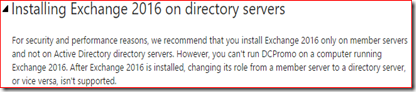
In fact, this is supported since Exchange 2000 and has not changed for every new version up to the recently released Exchange 2016. As we can find in the Exchange 2016 System Requirements page:
image

Installing Exchange 2016 on directory servers
For security and performance reasons, we recommend that you install Exchange 2016 only on member servers and not on Active Directory directory servers. However, you can't run DCPromo on a computer running Exchange 2016. After Exchange 2016 is installed, changing its role from a member server to a directory server, or vice versa, isn't supported.

So should we?

Supported but not recommended, why is that? There are multiple reasons why you should consider to install Exchange on a member servers.

Firstly both Exchange and an Active Directory domain controller are resource-intensive tasks. For instance, both need to cache data in memory for best performance and will try to claim resources to do so. Running both tasks on the same computer may impact the performance and end-user experience for both AD and Exchange.

Exchange supports an RBAC model which allows an organization to deploy the least amount of privileges to their admins to do their work. However, when an admin needs local administrative access to server which has Exchange installed he gains administrative access to Active Directory too. This would enable the admin to elevate their own privileges which of course is a security risk.

A domain controller with Exchange installed cannot be demoted to remove AD from the computer as long as Exchange is installed, the last version that did support this was Exchange 2000. This may mean that at some later time an organization may find they can’t remove domain controllers from their environment without removing Exchange from the server first. In the recent past this is something that organizations often encountered when they needed to remove Windows Server 2003 domain controllers in order to be able to raise the domain or forest functional level. By the way, you also can’t promote a server with Exchange already installed but that is a much less common scenario.

I briefly touched the subject of security when discussing your admins working on this server, security needs considered with user access in mind too. Some firewall ports need to be forwarded to this server to accept email and give access to OWA/Outlook on the web, ActiveSync, Outlook Anywhere and maybe even legacy protocols as POP3 and IMAP4. Nowadays Exchange is considered secure enough to expose it to the internet directly but do you want to allow hackers to target your domain controller too? Opening firewall ports to allow access from the internet to your domain controller is not something I would call a security best practice.

There’s even more reasons why you should not install on a Exchange server but I won’t do into too much details here. Use your favorite search engine to do a search on this topic and you will find a ton of discussions about this subject.

Yeah, but what if…?

I am aware that for some very small organizations it may not make sense to purchase additional hardware and Windows Server licenses. Certainly not from a cost perspective. With a small load it’s unlikely that performance is going to be an issue and many small business owners will consider the security implications something for large enterprises to be concerned about. After all, Microsoft until recently sold the Small Business Server products that did install Active Directory, Exchange, SharePoint, ISA/TMG and even SQL on a single box. If that was an acceptable solution, why shouldn’t we do that with just AD and Exchange?

Running Exchange on a domain controller is a supported solution and as long as you understand the impact, go ahead and deploy that single server. When performance, security and flexibility play a role and the budget or infrastructure allows for, it’s recommended to deploy a new Windows server and install Exchange on that server.

Wednesday, October 28, 2015

How to remove the Exchange Autodiscover SCP

Consider a scenario where you moved all your user’s mailboxes to Exchange Online, for instance after a cutover or staged migration and want to remove any dependencies on the local Exchange server. You may find that Outlook still connects to the local Exchange server for Autodiscover lookups, this is because Outlook is hard-coded to query an AD Service Connection Point to locate a server with the Autodiscover service. When this fails Outlook falls back to the next DNS based methods or uses a local XML file.

Exchange Management Shell

There are multiple ways to prevent Outlook from contacting the local Exchange server first, some of them make more sense than others. The preferred way is to use the Exchange Management Shell to clear the entry for the Client Access server from the SCP.

Set-ClientAccessServer –Identity ServerName -AutoDiscoverServiceInternalUri $null

image

This removes the SCP entry for this Exchange server.

ADSIEdit

If the above method can no longer be used a low level AD editor as EDSIEdit can be used to remove the SCP manually. The full path of the SCP is:

CN=ServerName,CN=Autodiscover,CN=Protocols,CN=ServerName,CN=Servers,CN=Exchange Administrative Group (FYDIBOHF23SPDLT),CN=Administrative Groups,CN=OrganizationName,CN=Microsoft Exchange,CN=Services,CN=Configuration,DC=DomainName,DC=Suffix

This object to remove has the Class type serviceConnectionPoint.

image

Alternative methods

One of the above steps is basically all you need to do. Alternatives include adding an ExcludeScpLookup value to the \Autodiscover registry key (KB article) and some articles even let you remove the Autodiscover virtual directory from IIS. This will of course make Outlook unable to query the local Exchange server for Autodiscover but why should you if you can simply remove the SCP.

How to verify?

As always, the proof is in the pudding. Use the Outlook test E-mail AutoConfiguration feature to verify the clients behavior. We’re specifically interested in the Log tab where we should see that Outlook is no longer able to query the SCP to obtain the Autodiscover url.

To start the Test E-mail AutoConfiguration tool, follow these steps:

  1. Start Outlook.
  2. Hold down the Ctrl key, right-click the Outlook icon in the notification area, and then click Test E-mail AutoConfiguration.
  3. Verify that the correct email address is in the E-mail Address box.
  4. In the Test E-mail AutoConfiguration window, click to clear the Use Guessmart check box and the Secure Guessmart Authentication check box.
  5. Click to select the Use AutoDiscover check box, and then click Test.

Earlier I wrote a short article about this tool, unfortunately available in Dutch only: Autodiscover testen met Outlook. But you’ll get the general idea. Focus on the first or third tab when you’re interested in the Autodiscover results, read the Log tab when you're interested in the Autodiscover process.

Friday, July 10, 2015

Is your 'free' Exchange hybrid key really free?

And I'm not talking about Willy or Nelson Mandela, I mean free as in at 'at no additional cost'. There are numerous sources on the internet stating customers can obtain a free key for their hybrid server. What most articles forget to mention is that the license restrictions make this license free for just a very small subset of all customers.
And it's not just blog posts of independent writers, I heard Microsoft employees state the same while visiting customers and in presentations on tech conferences as MEC and TechEd. And even their new Exchange Hybrid Product Key Distribution wizard (http://aka.ms/hybridkey) does not mention all requirements.
image
In fact there are three major requirements to obtain the license key for free:
  • You have an existing, non-trial, Office 365 Enterprise subscription
  • You will not host any on-premises mailboxes on the Exchange 2013 or Exchange 2010 SP3 server on which you apply the Hybrid Edition product key.
And the one I want to emphasize:
  • You currently do not have a licensed Exchange 2013 or Exchange 2010 SP3 server in your on-premises organization
So if you're running licensed servers with Exchange 2010 in your environment, that Exchange 2013 server you want to deploy for hybrid is not free! In other words, the hybrid server license key is free if you're running Exchange 2007 or Exchange 2003 and have licenses for just those versions of Exchange.
In all other situations you will need to license your hybrid servers properly.
These license limitations can be found in the following KB article: How to obtain an Exchange Hybrid Edition product key for your on-premises Exchange 2007 or Exchange 2003 organization.

Thursday, June 18, 2015

Short rant about Exchange KB3035227 and MobileSyncRedirectBypass

I need to vent, that's all. I'm working with a customer to prepare for the installation of Exchange 2010 SP3 Update Rollup 9. The list of fixed issues is very short and counts only six bullets and a remark about DST updates:

image

The amazing Rhoderick Milne wrote a post about Exchange 2013 CU and mentioned an ActiveSync issue which involved UR 9 for Exchange 2010 SP3 too.

image

Please see an emerging issue with ActiveSync after deploying Exchange 2010 SP3 RU9 or Exchange 2013 RU8.

The article he refers to is KB3035227: Some Android devices can't set up an Exchange account after you install Exchange Server 2010 SP3 RU9 or Exchange Server 2013 CU8 So there is a known issue with UR9 but it is not included in the Known Issues section of Update Rollup 9 for Exchange Server 2010 Service Pack 3. That's annoying but well, I found the article so let's read...

image

So we're talking about adding a new ActiveSync (yes, that's one word and not Active Sync like the article says) account and Android fails to complete the Autodiscover process.

In the Cause section is a little bit of explanation about this issue:

Exchange Server 2010 SP3 RU9 and Exchange Server 2013 CU8 contain a new MobileSyncRedirectBypass feature in the Autodiscover service for Android devices. By default, this feature is enabled. Some versions of Android may not understand this feature.

Maybe I'm a bad reader but I still don't understand. What is this "new MobileSyncRedirectBypass feature in the Autodiscover service"? And where in the Autodiscover process will it send a 451 redirect message to the client? And what conditions would trigger this changed behavior?

Luckily there's a link for more information: Exchange ActiveSync Autodiscover is incomplete. The link goes to an article about the Android Activesync implementation and explains that Android does not support the HTTP redirect method which involves a 302 redirect. On the same page we can read that Android does support the 451 redirect. So the "more information" link doesn't answer questions, it raises new questions.

Now have a look at the instructions to disable this new feature. It starts with:

If the MobileSyncRedirectBypass feature is causing the problem, you can turn it off...

Wait, how can we determine that the MobileSyncRedirectBypass feature is causing the problem? Anyway, let's look at the steps:

    1. Locate the web.config file for the Autodiscover protocol:

      1. For Exchange Server 2013 MBX, the file is in the following location:

        %ExchangeInstallPath%\ClientAccess\Autodiscover

      2. For Exchange Server 2010 CAS, the file is in the following location:

        %ExchangeInstallPath%\ClientAccess\Autodiscover

    2. Open the web.config in Notepad, and then change the existing string from "true" to "false."

What existing string? My guess would be MobileSyncRedirectBypass but there's no such string in the file:

image

So this article fails to explain the issue or what's causing the issue and the resolution steps are incomplete. And the worst part?

image

Apparently this is the 4th major revision of the article!

End of rant. Does it make me feel better? Not really. I promise to write a more constructive post once I obtained more information about this issue.

Tuesday, June 16, 2015

Exchange 2010 in Extended Support phase, last scheduled UR released today

Exchange 2010 entered the Extended Support phase earlier this year. Basically this means that only security updates will be released to all customers. New and improved features will no longer be added and non-security bugs will be not always be fixed.

image

Exchange 2010 is a little bit special because it's currently the most widely deployed version of Exchange. And why not, the HA model with the DAG works like a charm, the product is stable and mature and has all the features you can think of. Of course the web interface is looks a bit outdated but it works very well.

The question is if and when customers should upgrade from something that runs pretty well. There is some similarity with Exchange 2003 in the Exchange 2007 and early 2010 timeframe, the software was outdated but it worked very well. This is why so many customers kept running Exchange 2003 until and past the end of Extended Support phase.

Today Microsoft announced Update Rollup 10 for Exchange 2010 SP3. The list with resolved issues counts only 7 bullets.

image

Very interesting is this little remark at the bottom of the announcement on the Exchange team blog:

Update Rollup 10 is the last scheduled release for Exchange Server 2010. Both Exchange Server 2010 and Exchange Server 2007 are in extended support and will receive security and time zone fixes on-demand on a go-forward basis.

So if you're running 2010, now would be a great time to start planning your upgrade to Exchange 2013, which is rock solid with the 9th CU released today, or Exchange 2016 which is scheduled for release later this year.

Friday, June 12, 2015

Exchange Best practice: Increase the Application log file

Exchange is known as a chatty application when it comes to the Application log. And even while most of the information nowadays is written to the crimson channel, the classic Application still is a great source of information when you need to troubleshoot an issue.

The default settings of the Application log are a maximum size of 16 MB and older events are then overwritten when the log has reached that size. Now this may seem a lot, but can be be only a few hours of information for a busy server in a large environment. Good luck troubleshooting that issue that happened yesterday.

I know some of you are already doing this by default on a new Exchange server deployment, but you should definitely increase the log file size to a larger value. This can be done with the Limit-Eventlog cmdlet.

image

Limit-EventLog -LogName Application -MaximumSize 100MB

Or on all your Exchange servers at once:

Get-ExchangeServer | % { Limit-EventLog -LogName Application -MaximumSize 100MB -ComputerName $_.name  }

Well, you get the idea. More information: Limit-Eventlog

Monday, June 1, 2015

VMware, let's talk about Exchange and best practices

Apologies for the weird spacing, apparently Google changed something so Windows Live Writer can't post to Blogger currently. Posted this via a very weird work-around.

This week I was made aware of some VMware articles and whitepapers about running Microsoft Exchange on VMware VSAN. VMware VSAN is a 'virtual SAN' solution that employs local server storage and presents this to the hypervisor as a pool of shared storage, similar to the approach of Nutanix.

What surprised me, besides the mud slinging between VMware and their partner Nutanix, is the Exchange environment VMware built to execute their performance testing with.
I won't go into the details of the VSAN storage technology in this blog post, nor cover all aspects of the Exchange architecture design process. Today I want to focus on the high-level Exchange architecture used in the whitepapers.

The Exchange 2010 on VSAN whitepaper

First let's take a look at the 2014 whitepaper Microsoft® Exchange Server Performance on VMware Virtual SAN™.


Wait what? Exchange 2010 was used to perform the tests while Exchange 2013 was released almost two years earlier. Exchange 2010 was installed on Windows Server 2008 R2 while Server 2012 was available. Using older software to demonstrate your platforms capabilities may be done for very good reasons, however they were not explained in the whitepaper.


Microsoft introduced server roles in Exchange 2007 and soon discovered the new roles confused the crap out of their customers. So in the Exchange 2010 time-frame the Exchange team started to emphasize why combining the Mailbox, Client Access and Hub Transport roles on a single server was the preferred way to deploy Exchange. Most important reason: less complexity. And with that of course comes a decrease in costs, better reliability and more good things.

There have been situations where multi-role was not the most efficient option. Back when Exchange 2010 was released the most dominant hypervisor vendor was not able to assign more than 4 vCPU to a VM and when they were, they charged extra for that capability. As far as I know none of these limitations apply today so it's unclear why VMware did not deploy Exchange as recommended.


The Exchange 2013 on VSAN 6.0 whitepaper

The updated version of this whitepaper can be found here: Virtualizing Microsoft Applications on VMware Virtual SAN, Reference Architecture. In this whitepaper VMware explains how to deploy a HA Exchange 2013 environment while using the VSAN solution as the storage back-end.

Now starting with Exchange 2013 the Exchange team went a step further and consolidated their recommendations in the Preferred Architecture. This architecture was presented on industry conferences as MEC, TechEd and recently Ignite. In fact, the first article Microsoft released about Exchange 2016 contains a section called Preferred Architecture where the team explains the Exchange 2013 PA remains valid, with some minor updates.

Now let's compared the PA with the architecture VMware describes in this whitepaper.


First of all VMware did not deploy multi-role servers, they deployed 8 Exchange 2013 server where 4 could've done the trick. More servers equals an increase in complexity and costs.
The placement of the "DAG File Cluster" is a bit confusing too, especially because the Exchange Mailbox servers and the FSW are connected by a blue line. I wonder if the author understands the role of the FSW for the cluster.


Database and log files are isolated, this isn't required. And 80 GB is not sufficient for the OS (32 GB), page file (32 GB + 10 MB) and Exchange (30 GB).


VMware uses two network adapters, which nowadays is no longer the best practice.


Not just VMware, Citrix too

Recently I commented on some Exchange whitepapers by Citrix and today I looked at two whitepapers by VMware. Both vendors demonstrate they have limited understanding of Microsoft Exchange and the best practices Microsoft wrote.

Let me be honest. IT has been never more challenging as today. Customer's environments are growing in size and complexity. Trends like virtualization (server, network, storage, application, etcetera), BYOD, consumerization of IT, cloud computing and increasing demands from the business can drive an IT person crazy. This is why it has never been so important for vendors to reduce complexity, make sure recommendations are in line with other vendors and that customers receive all the help they need to implement the solutions in the best way possible.

As an Exchange consultant I often sat with customers discussing Microsoft best practices for Exchange and the storage or virtualization guy showing up with an outdated or slightly inaccurate document instructing the exact opposite. Customers expect the vendors to help them clarify stuff, not to cause even more confusion.

So Citrix, VMware and other vendors too, time to step up your game. Make sure you read and understand every article on the official Exchange Team Blog. Update your whitepapers during their lifetime when progressive insight or updated best practices require it. Ask Microsoft for feedback or involve Subject Matter Experts to review your document and provide some feedback from their perspective. I'm sure that with a little extra effort the quality of the whitepapers can improve a lot.

Tuesday, May 19, 2015

PAL tool now works with Exchange 2013!

PAL or Performance Analyzer for Logs is a handy tool to assist with performance monitoring and troubleshooting. Many Exchange admins have used this tool to quickly create a performance counter set and scan the results against a threshold file. PAL outputs a report with easy graphs and performance alerts. This report is a great help to get a quick overview of the performance of a server and indication of possible performance bottlenecks.

Unfortunately there was no threshold file for Exchange 2013, partly because Microsoft never published the detailed performance counter information as they did for 2007 and 2010. I am very excited that Adrian Moore (admoore@microsoft.com) found the time to write the threshold file for Exchange 2013, which is included with PAL version 2.7.3.

Download PAL and read more at the PAL site on Codeplex.

Tuesday, May 12, 2015

Allow or disallow Outlook Online Mode per user

Outlook Cached Mode offloads IOPs from the server to the workstation, provides offline access and also makes the user experience less vulnerable to unreliable or high-latency internet connections. So Cached Mode is recommended for Exchange Online and is the the preferred mode to connect Outlook with Exchange.

Unfortunately there are some scenario's where you can't enable Cached Mode, for instance stateless (VDI) desktops or RDS/TS hosts when customers for some reason are not able to store the .OST file on a fileserver.

So far nothing new for you as an experience Exchange admin. But did you know that you can specify per-mailbox if it's allowed to access with Outlook in Online Mode? This can be controlled with the Set-CASMailbox cmdlet. This cmdlet is available in both Exchange 2010 and 2013, however the switch to allow Online Mode is not available in Exchange Online.

It's very easy to block access with Outlook in Online Mode for a single mailbox:

Get-Mailbox <user> | Set-CASMailbox -MAPIBlockOutlookNonCachedMode:$true

image

A value of True enables the blocking of Online Mode clients, set the value to False to disable checking of the connection mode. False is the default value.

The user experience is not that great, a rather generic error message is displayed when the user tries to connect in Online Mode:

image

So if you have the requirement to block Outlook in Online Mode, you can do this with the Set-CASMailbox and the MAPIBlockOutlookNonCachedMode switch.

Beware though, setting MAPIBlockOutlookNonCachedMode to $true breaks New-MailboxExportRequest which means you can't export the content from this mailboxes to PST. Not something you would do every day, but good to know.

Tuesday, April 14, 2015

Exchange 2010 SP3: UCMA requires the following missing Windows features

When installing Exchange 2010 SP3 on a server with Windows Server 2012 you need to install some prerequisites first. Each server with the Client Access role requires the Unified Communications Managed API 4.0 Runtime.

You may run into this error message when you try to install:

image

Microsoft Unified Communications Managed API 4.0, Runtime requires the following missing Windows features.

  • Media Foundation

This error occurs when you followed the instructions on this page: Exchange 2010 Prerequisites (Install the Windows Server 2012 operating system prerequisites). For a server with the three basic roles Microsoft says you need to install the following operating system components:

image

Unfortunately Server-Media-Foundation is missing, that's why the UCMA installation fails. So we need to add this one too:

Add-WindowsFeature Server-Media-Foundation

And while we're on it, don't forget to add Telnet-Client because this basic troubleshooting tool should be installed on every server with Exchange by default.

Tuesday, March 3, 2015

Exchange and support for CNG/KSP certificates

Cryptography Next Generation (CNG) is a set of APIs which can be found in Windows Server 2008 and newer. CNG offers an advanced set of features to create hashes, encrypt and decrypt data and to manage keys and cryptographic providers. CNG implements the United States government's Suite B cryptographic algorithms. As the hipsters say, CNG is the new PKI but you probably haven't heard of it.

One of the features of CNG is to create certificates that that use a Key Storage Provider (KSP) to store the private key, as opposed to a Cryptographic Service Provider (CSP) like regular certificates do. Exchange does not support these types of certificates for securing OWA and ECP. You will notice this immediately because your users will return back in the FBA screen after logging in after you installed such a certificate.

Read the following article for more information and workarounds: Outlook Web App and ECP redirect to the FBA page in Exchange Server 2013

Friday, February 20, 2015

Outlook Anywhere Kerberos and moving to Exchange 2013? Read this first.

If you run Exchange 2010 and are using Kerberos authentication for Outlook in a load-balanced environment you probably have scheduled the RollAlternateserviceAccountPassword.ps1 script. This script updates the alternate service account credential (ASA credential) and pushes the new value to your CAS servers. Common parameter options are -ToEntireForest, -ToArrayMembers or -CopyFrom with -ToSpecificServers. If you are familiar with the script, I assume they need no clarification.

Now consider a scenario where you used -ToArrayMembers and you add your first Exchange 2013 CAS server to that site. The script uses the Get-ClientAccessArray cmdlet to query the members of this array, this cmdlet returns the Exchange 2013 CAS servers in that site too.

image

Unfortunately the script is not able to update the ASA credential on both 2010 and 2013 servers. This causes the script to fail when it tries to process the Exchange 2013 CAS server and ultimately cancels the process of updating and synchronizing the ASA credential. Unless you configured specific monitoring for this process you'll probably won't notice the issue before stuff breaks and users start complaining. To check if this issue applies to your environment:

Get-ClientAccessServer -IncludeAlternateServiceAccountCredentialstatus |Fl Name, AlternateServiceAccountConfiguration

By the way, the RollAlternateserviceAccountPassword.ps1 script writes a log file in the $exinstall\Logging\RollAlternateServiceAccountPassword folder. Be ware this log is written on the server where the script is executed, this is not necessarily the server where you scheduled the script to run.


There are several workarounds to prevent this from happening. First you could consider to deploy the Exchange 2013 CAS servers in another site. Another option is to update a single server first and then use the -CopyFrom and -ToSpecificServers switches to update your Exchange 2010 CAS servers which you have to specify.


For more information on planning the migration from Exchange 2010 to Exchange 2013 with regards to Kerberos authentication I recommend this excellent article on the Exchange Team Blog: Exchange 2013 and Exchange 2010 Coexistence with Kerberos Authentication