Friday, June 12, 2015

Exchange Best practice: Increase the Application log file

Exchange is known as a chatty application when it comes to the Application log. And even while most of the information nowadays is written to the crimson channel, the classic Application still is a great source of information when you need to troubleshoot an issue.

The default settings of the Application log are a maximum size of 16 MB and older events are then overwritten when the log has reached that size. Now this may seem a lot, but can be be only a few hours of information for a busy server in a large environment. Good luck troubleshooting that issue that happened yesterday.

I know some of you are already doing this by default on a new Exchange server deployment, but you should definitely increase the log file size to a larger value. This can be done with the Limit-Eventlog cmdlet.

image

Limit-EventLog -LogName Application -MaximumSize 100MB

Or on all your Exchange servers at once:

Get-ExchangeServer | % { Limit-EventLog -LogName Application -MaximumSize 100MB -ComputerName $_.name  }

Well, you get the idea. More information: Limit-Eventlog

Wednesday, June 10, 2015

Saturday, June 6, 2015

How to disable IPv6 on a Windows computer

Let me start with this:

Best practice is to leave IPv6 enabled on all computers.

However, if there's a valid reason to disable IPv6, it's essential to do this the proper way. An example of such a reason is coexistence of Exchange 2007 and 2013 were the official documentation instructs the admin to disable IPv6 on the Exchange 2007 server.

Simply disabling the IPv6 protocol on your network adapter settings may seem the easiest, but is known to break stuff. Instead use the DisabledComponents registry key to control the IPv6 status. For instance, to disable the entire IPv6 stack on a Windows computer you can set the value to ff:

Set-ItemProperty HKLM:\SYSTEM\CurrentControlSet\Services\Tcpip6\Parameters DisabledComponents 0xff -type dword

image

For information, read How to disable IPv6 or its components in Windows

Thursday, June 4, 2015

"Logjam" and KEMP LoadMaster: not vulnerable

KEMP Technologies releases a statement about their KEMP LoadMaster line of application delivery controllers and the recent Logjam vulnerability, also known as CVE-2015-4000.

image

In short, the LoadMaster products do not use the weak DHE_EXPORT cipher suites and are NOT vulnerable for Logjam exploits. Reed the full statement here.

Tuesday, June 2, 2015

New EOP connector validation fails when connector is disabled

Recently Microsoft announced a new feature for creating connectors in Exchange Online Protection: Announcing a new way to create connectors in Office 365. What it basically does is adding a few steps to the wizard after an admin creates an outbound connector. In these steps the configuration of the connector is being validated by sending a test email.

image

Validation is mandatory and a connector can only be saved after you performed validation, whether validation failed or succeeded. I think this is a great feature because configuration mistakes can be easily made and often result in huge queues filling up or lot of NDRs being sent.

Now unfortunately there is an issue with the current implementation. Consider a scenario where you need to prepare a connector but you're not ready to enable the connector and actually modify the mail flow configuration. When you for instance need approval first or wait for a maintenance window to activate the changed configuration.

The wizard anticipates this scenario and allows you to uncheck the "Turn it on" option on the second page of the wizard:

image

Before the latest update this would result in a disabled but configured connector. Currently this results in a failed validation, even if the settings of the connector are all correct.

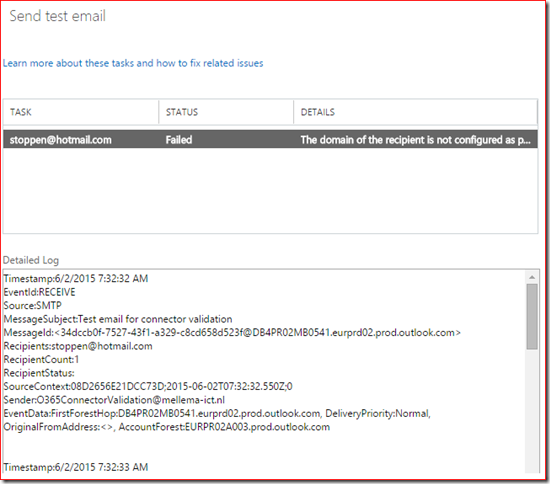
In this example I created an outbound connector from Office 365 to a Partner Organization, used the default options where TLS is applied and added the Hotmail.com domain to the connector. After validation the Send test mail step fails:
image

The error message is "The domain of the recipient is not configured as part of connector". The Detailed Log doesn't provide any details about why the test failed. In fact it didn't even fail, the test email was received successfully:

image

This issue is being caused by the fact we choose not to enable this connector. If we would not have removed the checkmark and allow EOP to create and enable the connector the validation succeeds. This is obviously a bug and should be improved by either being able to validate a disabled connector or give the admin some feedback that validation failed because the connector being in a disabled state.

So what can we do to create the connector successfully? Here we have several options. First is to enable the connector during creation and validation and disable it immediately afterwards. Another option is to check if the test email was receive on the remote system and ignore the failed validation. Finally we can test the process in a test (or trial) tenant, however this tenant would likely not be 100% identical to our production tenant.

A service request was raised with Microsoft Support and I'm expecting a fix somewhere in the near feature.

Monday, June 1, 2015

VMware, let's talk about Exchange and best practices

Apologies for the weird spacing, apparently Google changed something so Windows Live Writer can't post to Blogger currently. Posted this via a very weird work-around.

This week I was made aware of some VMware articles and whitepapers about running Microsoft Exchange on VMware VSAN. VMware VSAN is a 'virtual SAN' solution that employs local server storage and presents this to the hypervisor as a pool of shared storage, similar to the approach of Nutanix.

What surprised me, besides the mud slinging between VMware and their partner Nutanix, is the Exchange environment VMware built to execute their performance testing with.
I won't go into the details of the VSAN storage technology in this blog post, nor cover all aspects of the Exchange architecture design process. Today I want to focus on the high-level Exchange architecture used in the whitepapers.

The Exchange 2010 on VSAN whitepaper

First let's take a look at the 2014 whitepaper Microsoft® Exchange Server Performance on VMware Virtual SAN™.


Wait what? Exchange 2010 was used to perform the tests while Exchange 2013 was released almost two years earlier. Exchange 2010 was installed on Windows Server 2008 R2 while Server 2012 was available. Using older software to demonstrate your platforms capabilities may be done for very good reasons, however they were not explained in the whitepaper.


Microsoft introduced server roles in Exchange 2007 and soon discovered the new roles confused the crap out of their customers. So in the Exchange 2010 time-frame the Exchange team started to emphasize why combining the Mailbox, Client Access and Hub Transport roles on a single server was the preferred way to deploy Exchange. Most important reason: less complexity. And with that of course comes a decrease in costs, better reliability and more good things.

There have been situations where multi-role was not the most efficient option. Back when Exchange 2010 was released the most dominant hypervisor vendor was not able to assign more than 4 vCPU to a VM and when they were, they charged extra for that capability. As far as I know none of these limitations apply today so it's unclear why VMware did not deploy Exchange as recommended.


The Exchange 2013 on VSAN 6.0 whitepaper

The updated version of this whitepaper can be found here: Virtualizing Microsoft Applications on VMware Virtual SAN, Reference Architecture. In this whitepaper VMware explains how to deploy a HA Exchange 2013 environment while using the VSAN solution as the storage back-end.

Now starting with Exchange 2013 the Exchange team went a step further and consolidated their recommendations in the Preferred Architecture. This architecture was presented on industry conferences as MEC, TechEd and recently Ignite. In fact, the first article Microsoft released about Exchange 2016 contains a section called Preferred Architecture where the team explains the Exchange 2013 PA remains valid, with some minor updates.

Now let's compared the PA with the architecture VMware describes in this whitepaper.


First of all VMware did not deploy multi-role servers, they deployed 8 Exchange 2013 server where 4 could've done the trick. More servers equals an increase in complexity and costs.
The placement of the "DAG File Cluster" is a bit confusing too, especially because the Exchange Mailbox servers and the FSW are connected by a blue line. I wonder if the author understands the role of the FSW for the cluster.


Database and log files are isolated, this isn't required. And 80 GB is not sufficient for the OS (32 GB), page file (32 GB + 10 MB) and Exchange (30 GB).


VMware uses two network adapters, which nowadays is no longer the best practice.


Not just VMware, Citrix too

Recently I commented on some Exchange whitepapers by Citrix and today I looked at two whitepapers by VMware. Both vendors demonstrate they have limited understanding of Microsoft Exchange and the best practices Microsoft wrote.

Let me be honest. IT has been never more challenging as today. Customer's environments are growing in size and complexity. Trends like virtualization (server, network, storage, application, etcetera), BYOD, consumerization of IT, cloud computing and increasing demands from the business can drive an IT person crazy. This is why it has never been so important for vendors to reduce complexity, make sure recommendations are in line with other vendors and that customers receive all the help they need to implement the solutions in the best way possible.

As an Exchange consultant I often sat with customers discussing Microsoft best practices for Exchange and the storage or virtualization guy showing up with an outdated or slightly inaccurate document instructing the exact opposite. Customers expect the vendors to help them clarify stuff, not to cause even more confusion.

So Citrix, VMware and other vendors too, time to step up your game. Make sure you read and understand every article on the official Exchange Team Blog. Update your whitepapers during their lifetime when progressive insight or updated best practices require it. Ask Microsoft for feedback or involve Subject Matter Experts to review your document and provide some feedback from their perspective. I'm sure that with a little extra effort the quality of the whitepapers can improve a lot.

Wednesday, May 20, 2015

Did you know there used to be a KB Article called "How to ask a question"?

If you spend some time in online communities you may have seen people asking questions without making any effort. Some people fail to choose a descriptive title or expect they get more attention with “HELP MY SERVER IS BROKEN, URGENT!!!”. Others forget to do an online search for information first or omit the actual error message or troubleshooting they already did before asking for help.

Back in the early 2000’s when I answered questions in the Microsoft newsgroups I often pointed people to this Knowledge Base article: How to ask a question. The article was written by Daniel Petri, a former Exchange and current Directory Services MVP and maybe best known as the founder of the Petri IT knowledgebase. The article was structured just as any other articles including sections Summary, Symptoms, Cause and Resolution. The tone was polite, respectful but for some reason I found it very satisfying to answer such a bad question with a link to https://support.microsoft.com/?id=555375.

image

I was a bit disappointed to discover that Microsoft replaced the original KB555375 with a more political correct article. But of course you can still access the original version through web.archive.org: How to ask a question.

Tuesday, May 19, 2015

PAL tool now works with Exchange 2013!

PAL or Performance Analyzer for Logs is a handy tool to assist with performance monitoring and troubleshooting. Many Exchange admins have used this tool to quickly create a performance counter set and scan the results against a threshold file. PAL outputs a report with easy graphs and performance alerts. This report is a great help to get a quick overview of the performance of a server and indication of possible performance bottlenecks.

Unfortunately there was no threshold file for Exchange 2013, partly because Microsoft never published the detailed performance counter information as they did for 2007 and 2010. I am very excited that Adrian Moore (admoore@microsoft.com) found the time to write the threshold file for Exchange 2013, which is included with PAL version 2.7.3.

Download PAL and read more at the PAL site on Codeplex.

Tuesday, May 12, 2015

Allow or disallow Outlook Online Mode per user

Outlook Cached Mode offloads IOPs from the server to the workstation, provides offline access and also makes the user experience less vulnerable to unreliable or high-latency internet connections. So Cached Mode is recommended for Exchange Online and is the the preferred mode to connect Outlook with Exchange.

Unfortunately there are some scenario's where you can't enable Cached Mode, for instance stateless (VDI) desktops or RDS/TS hosts when customers for some reason are not able to store the .OST file on a fileserver.

So far nothing new for you as an experience Exchange admin. But did you know that you can specify per-mailbox if it's allowed to access with Outlook in Online Mode? This can be controlled with the Set-CASMailbox cmdlet. This cmdlet is available in both Exchange 2010 and 2013, however the switch to allow Online Mode is not available in Exchange Online.

It's very easy to block access with Outlook in Online Mode for a single mailbox:

Get-Mailbox <user> | Set-CASMailbox -MAPIBlockOutlookNonCachedMode:$true

image

A value of True enables the blocking of Online Mode clients, set the value to False to disable checking of the connection mode. False is the default value.

The user experience is not that great, a rather generic error message is displayed when the user tries to connect in Online Mode:

image

So if you have the requirement to block Outlook in Online Mode, you can do this with the Set-CASMailbox and the MAPIBlockOutlookNonCachedMode switch.

Beware though, setting MAPIBlockOutlookNonCachedMode to $true breaks New-MailboxExportRequest which means you can't export the content from this mailboxes to PST. Not something you would do every day, but good to know.

Monday, May 11, 2015

Microsoft Ignite 2015: Things can only get better

Last week I was lucky enough to be able to attend Microsoft's new flagship conference Microsoft Ignite 2015. Ignite was meant to replace TechEd, MMS, MEC and a bunch of other Microsoft tech conferences. MEC 2014 was absolutely awesome because of the content of the sessions, the relatively small scale of the conference and venue and most important: ample opportunity for interactions with speakers, product group members, MVPs, MCMs and others peers from the Exchange or Office 365 field.

From the initial announcement it was clear that Microsoft had to work very very hard to offer a similar experience. The short answer: they failed to deliver. I won't go into the details too much, read one of these articles to get a better understanding of my experience:

As you may have noticed the feedback is very consistent and I agree with most of it. For me personally the quality and availability of food and drinks was the least of my concerns. It was the immense scale of the conference (23.000 attendees!) that made it very hard to do anything else then wait in lines or try to reach the next session room in 30 minutes and be able to enter before it's full.

Line for lunch starting in the bridge from the South Building

And being there with almost 23.000 attendees also means it was very rare to meet people, let alone to have a chat about the session contents. For me this was the greatest value of MEC and the greatest let down of Ignite.

Despite the many challenges I had a great time though. After a bit of a slow start, the Exchange track delivered some awesome sessions. Meet Exchange Server 2016 was a bit disappointing for a more infrastructure focused person like me, but the next sessions delivered great content, especially Exchange Server Preferred Architecture and Deploying Exchange Server 2016. And it was great to meet some people I only knew from their Twitter handle until then.

Ignite 2016 has been announced and will be held in the same city, same venue. So the distance between the venues and the hotels will remain the same, but I sure hope Microsoft can fix many of the issues with the first Ignite. Let's look at it this way: Ignite can 2016 can only get better!